![DentalMarketing-Logo2-White copy.png]](https://grow.dentalmarketing.com/hs-fs/hubfs/DentalMarketing-Logo2-White%20copy.png?height=40&name=DentalMarketing-Logo2-White%20copy.png)
Video on how-to grant access:
-
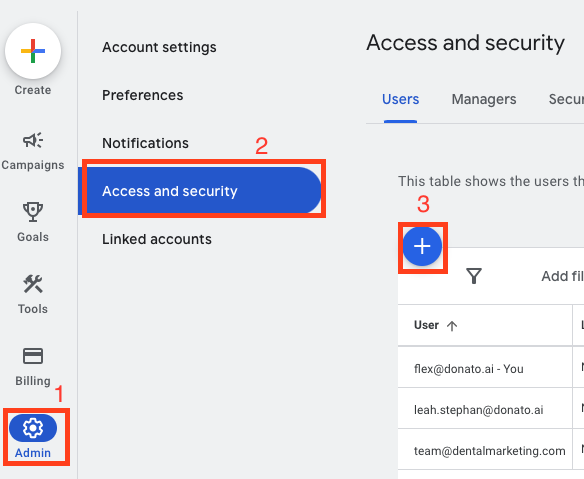
Log into the Google Ads account
-
Hover over 'Admin' (gear icon) > Click 'Access and security'
-
Click the blue '+' to invite Dental Marketing
-
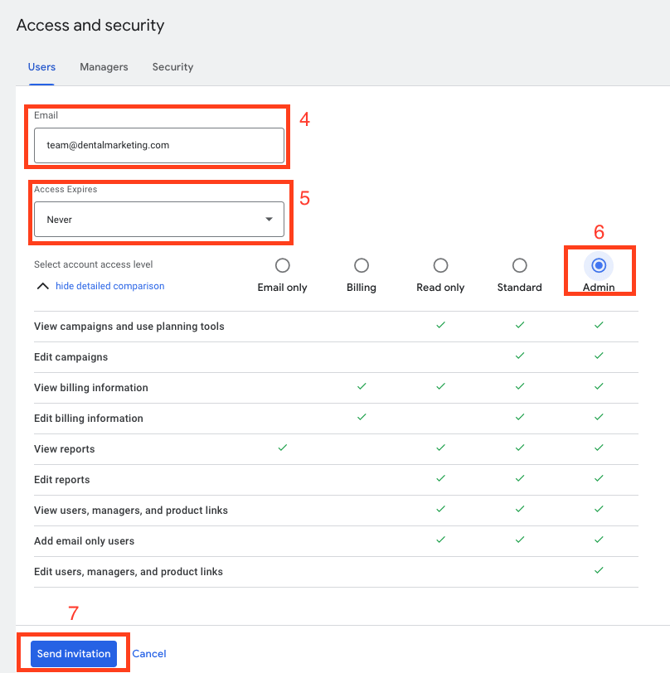
Enter the email, team@dentalmarketing.com
-
Ensure 'Access Expires' says 'Never'
-
Click the 'Admin' bubble
-
Click 'Send Invitation'
-
Notify your POC once you have sent the invitation so Dental Marketing can confirm & accept the invite
If You Get an “Email Address Isn’t in an Allowed Domain” Error
Sometimes Google Ads will not let you add Dental Marketing as an admin because the account has domain restrictions turned on.
You may see this error message: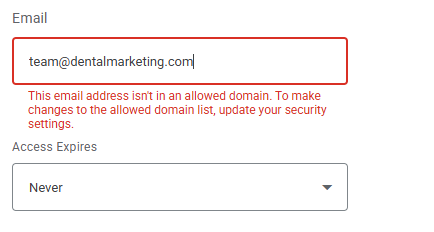
“This email address isn’t in an allowed domain. To make changes to the allowed domain list, update your security settings.”
If you see this error, you need to add dentalmarketing.com to the allowed domain list first.
Steps to Add Dental Marketing to Allowed Domains
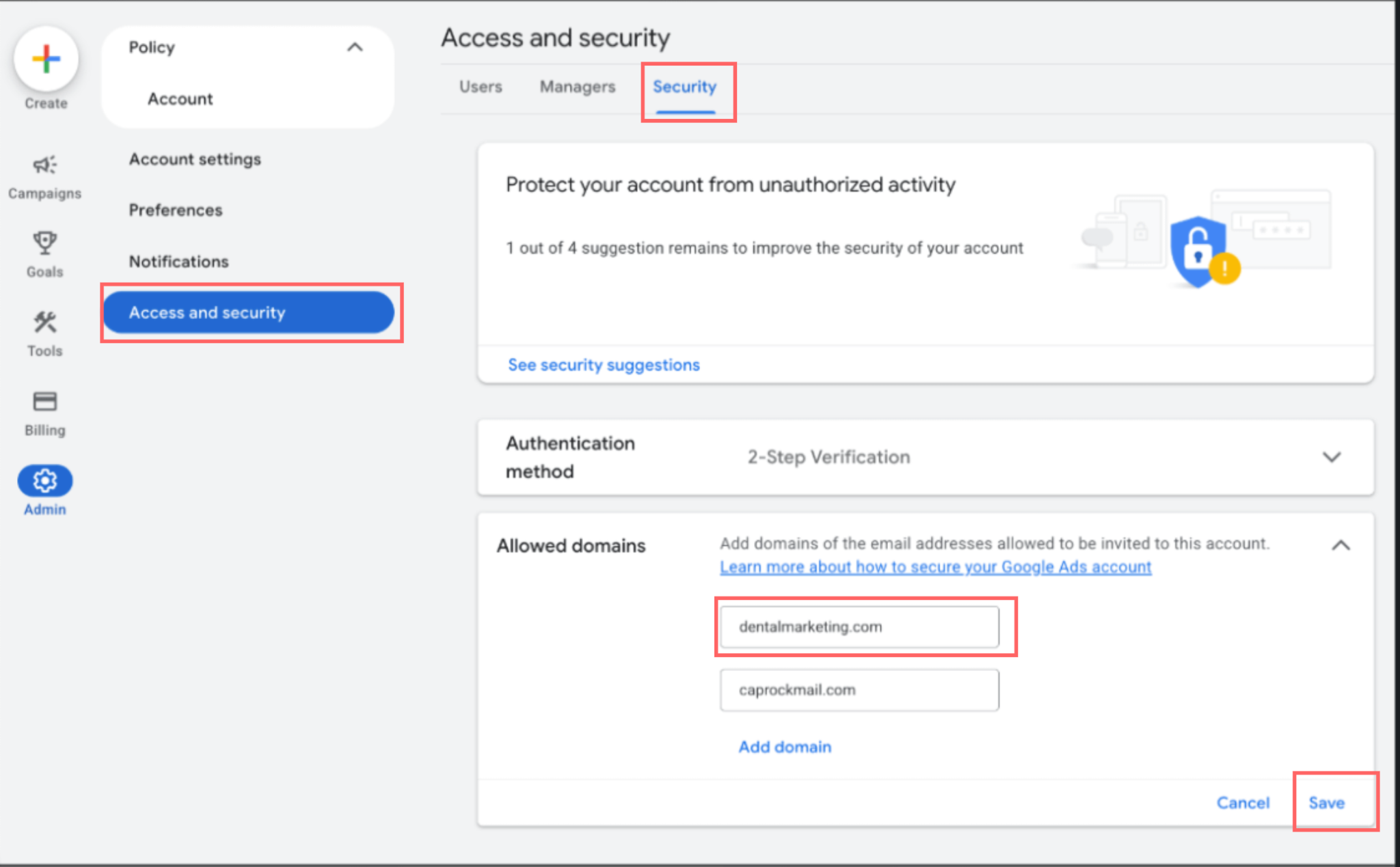
- Go to Admin in your Google Ads account.
- Click Access and Security.
- Click the Security tab.
- Go to Allowed Domains.
- Click Add Domain.
- Add dentalmarketing.com.
- Click Save.
After this is complete, go back to the normal access steps and invite team@dentalmarketing.com as an admin.