![DentalMarketing-Logo2-White copy.png]](https://grow.dentalmarketing.com/hs-fs/hubfs/DentalMarketing-Logo2-White%20copy.png?height=40&name=DentalMarketing-Logo2-White%20copy.png)
What our team will do vs. what you’ll manage
Our team will:
- Transfer your website project into your Webflow account.
- Provide these step-by-step written instructions.
- Join you on a call (if needed) to walk through the setup and publishing process.
You / Your IT team will:
- Manage your Webflow account and hosting plan billing.
- Manage your domain and DNS settings with your domain registrar.
- Complete the publishing, form setup, testing, and ongoing maintenance of your site.
1. Create your Webflow account
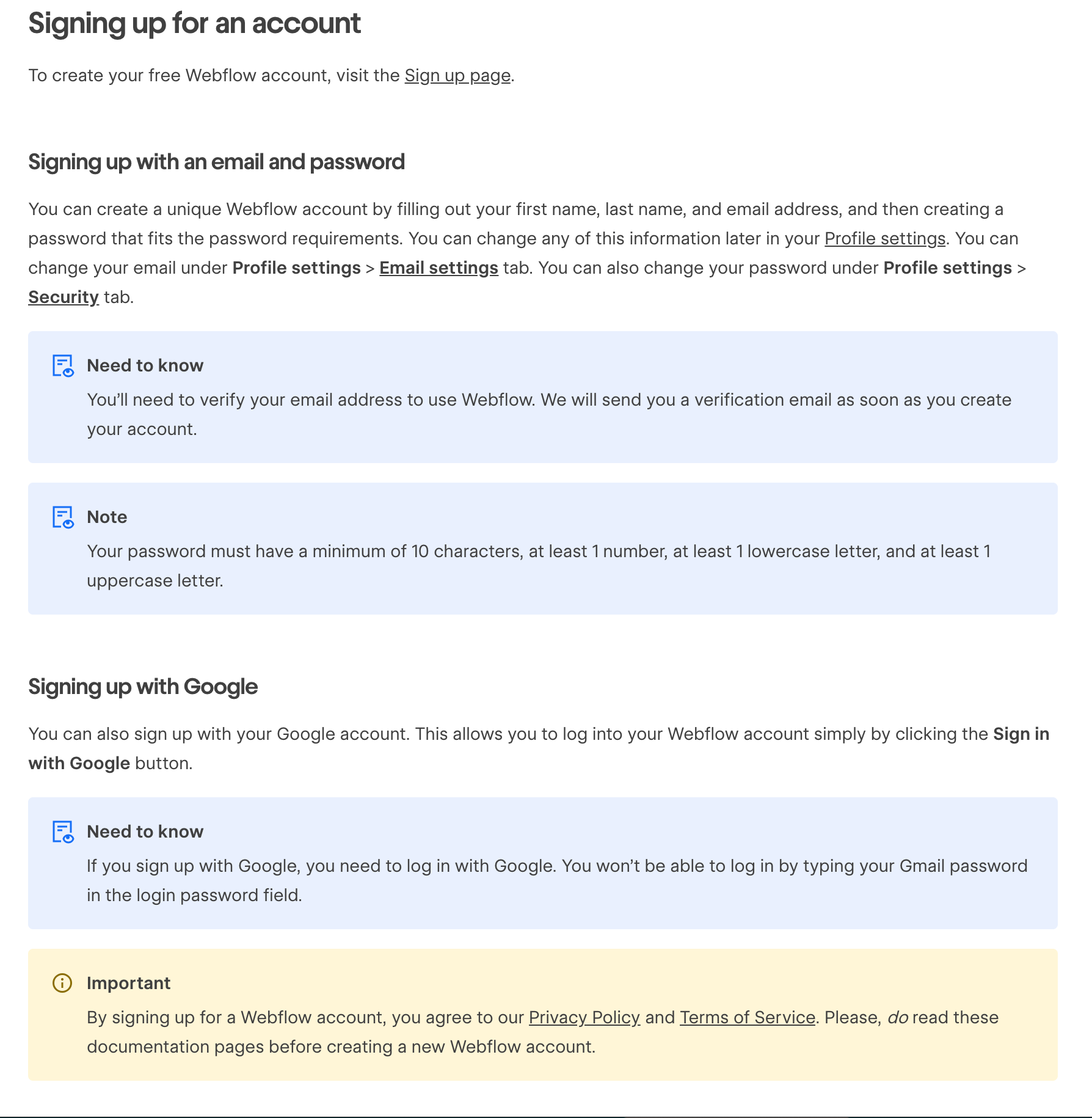
- Go to webflow.com and create a free account
– or log in if you already have one. - Confirm your Webflow account.
- Check your email for Webflow’s verification message.
- Follow the instructions to confirm your account before continuing.
If you have any issues or questions, refer to this Webflow article for more information: I signed up for a Webflow account but didn't receive the verification email. What should I do?
2. Confirm Your Webflow Account with Us
- Reply to our email with the email address associated with your Webflow account.
- This allows us to transfer your website project to the correct account.
- Enable notifications in your email and dashboard.
3. Choose a Webflow hosting plan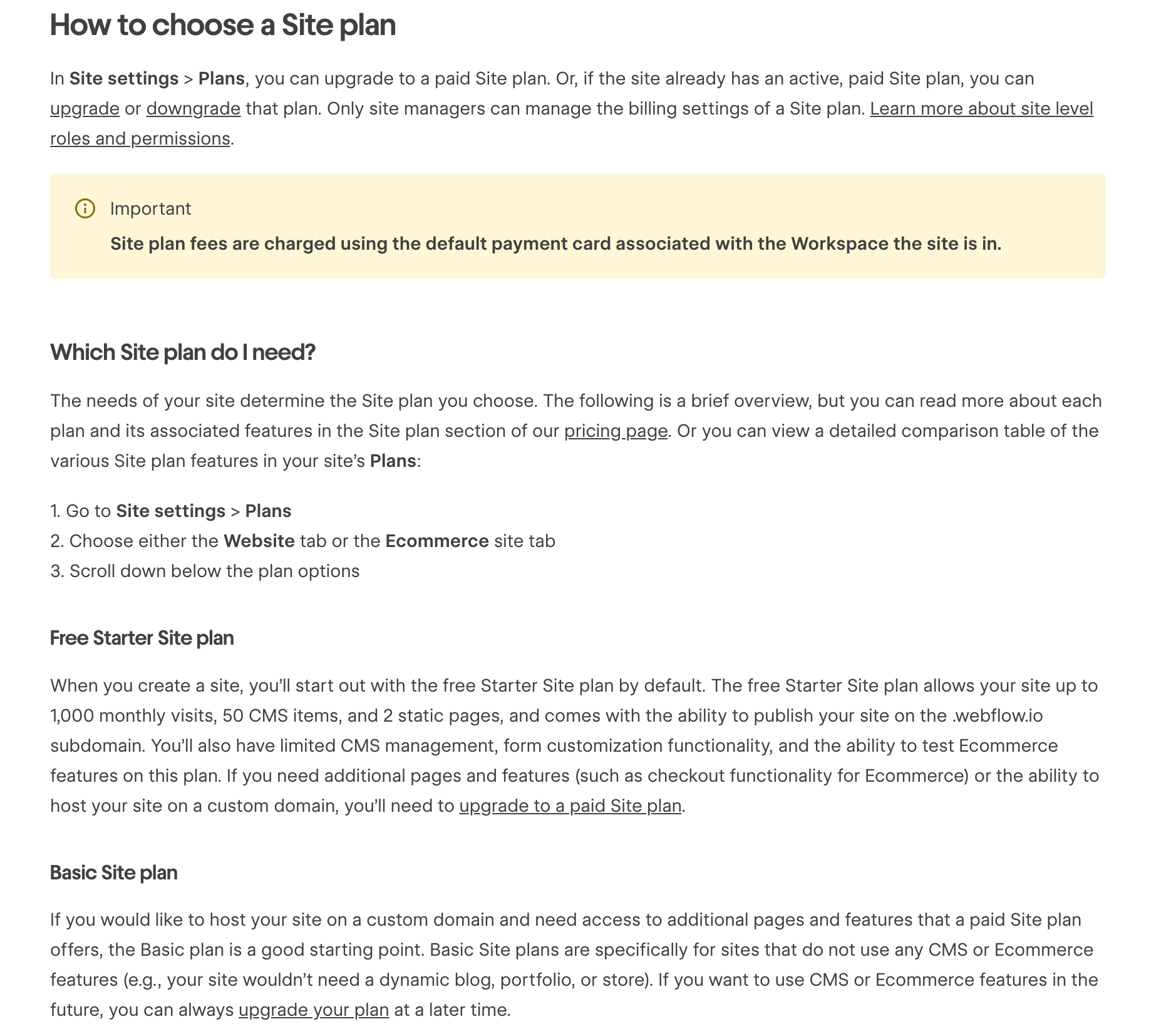
To make your site live on your own domain, Webflow requires a Site Hosting Plan (this is separate from any Webflow Workspace plan).
In your Webflow project:
- Open the project and go to Site Settings → Hosting.
- Select the CMS Hosting Plan (recommended and required for your site).
- Complete checkout and activate the hosting plan.
⚠️ Important:
Activating a hosting plan does not publish your site or connect your domain automatically. You will be able to proceed with domain connection and publishing only after hosting is active.
4. We Transfer Your Webflow Project
Once we have your confirmed Webflow account email:
- Our team will transfer your website project to you.
- You will receive a Webflow notification.
⚠️ Important:
The project will appear only after you accept the transfer from Webflow’s notification panel.
5. Accept the Webflow Project
- Open Webflow and check your Notifications panel.
- Accept the project transfer invitation.
- Choose or create a workspace (this is typically your default workspace).
Once accepted, the project will appear inside your Webflow workspace.
⚠️ At this stage, your site is NOT live yet.
6. Connect your custom domain
Coordinate your “go live” time
When you’re ready to update your domain and go live, please let us know so we can:
- Help you minimize downtime, and
- Confirm everything is ready on the Webflow side before you switch over.
Start your “go live” process.
Next, you’ll connect your domain (for example, yourdomain.com) to Webflow.
- In your Webflow project, go to Site settings → Publishing/Hosting.
- Click to add your custom domain.
- Choose one of these options:
Option A – Quick Connect (supported providers)
Use this if your domain is with a supported provider (e.g., GoDaddy, Bluehost, etc.).
- Select your provider from Webflow’s list.
- Log into your domain account when prompted.
- Webflow will automatically add the correct DNS records for you.
Option B – Manual DNS setup
Use this if your domain registrar isn’t in Webflow’s Quick Connect list.
- Enter your domain name in Webflow.
- Webflow will show the DNS records you need (typically two A records and one CNAME).
- Log into your domain registrar (e.g., GoDaddy, Namecheap, etc.).
- Go to your DNS/Zone settings and add the records shown in Webflow.
- Save your changes, then click Verify in Webflow.
Note: DNS updates can take a few hours and up to about 24–48 hours to fully propagate. During this time, some people may see the old site and others may see the new one.
7. Publish your site in Webflow
Once the domain added is setup, you’re ready to publish:
- In your Webflow project, click the Publish button.
- Select your custom domain.
- Click Publish to selected domains.
8. Set up your forms
You will need to set up the following forms:
- Book Form
- Email Form
- Reputation Management
Review this Webflow article on how to set up your forms: How do I add forms in Webflow?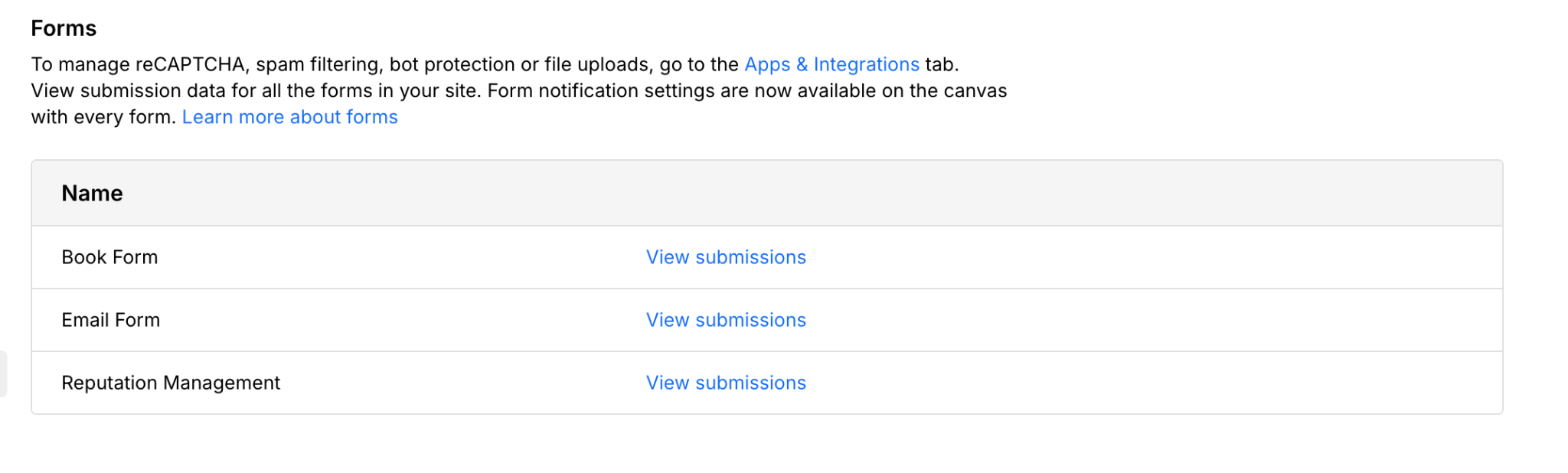
9. Test your Live
After publishing, we strongly recommend:
Check all key pages
- Visit your main pages (home, about, services, contact, etc.).
- Make sure pages load correctly and navigation works.
Test all forms
- Submit each form on the live site.
- Confirm you are receiving form notification emails at the correct email address.
- If needed, update the notification email inside Webflow’s form settings.
Verify integrations
- Check any chat widgets, embedded tools, booking systems, or other third-party integrations to make sure they work on the live domain.