![DentalMarketing-Logo2-White copy.png]](https://grow.dentalmarketing.com/hs-fs/hubfs/DentalMarketing-Logo2-White%20copy.png?height=40&name=DentalMarketing-Logo2-White%20copy.png)
Purpose
This SOP explains how to properly manage incoming client messages in the DentalMarketing.com Help Desk. The goal is to ensure timely responses, clear ownership, organized workflows, and a near-zero inbox at all times.
DentalMarketing.com leverages the Help Desk as the primary system for client communication. Every message creates a ticket that lives inside the Active Customer Support Pipeline.
Who This Is For
- Client Success Managers (CSMs)
- CS Leads
- Any team member assigned Help Desk tickets
Tools Used
- Help Desk (Customer Support Pipeline)
- Contact & Company Profiles
- Internal Comments (@mentions)
Help Desk View Covered in This SOP
This SOP specifically covers the Help Desk view:
“Name Emails (Incoming)”
This view is where you will manage day-to-day client conversations.
Ticket Assignment Rules
- Tickets are automatically assigned to the Contact Owner and/or Company Owner by default.
- Ownership determines who is responsible for next action and follow-up.
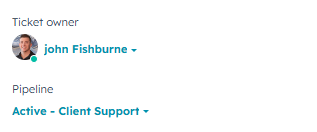
Always confirm you are the correct owner when opening a ticket.
Ticket Status Stages (Conversation Tickets)
These stages are used to manage conversation-based tickets: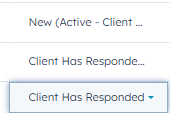
1. New Message – Needs Attention
- A new inbound client message
- Requires review and an initial response
Action: Open, read, and respond as soon as possible.
2. In Progress
- You have responded to the client
- You are waiting on an internal item (team response, update, or asset)
Action: Monitor and follow up internally as needed.
3. Pending Response From Client
- You are waiting on confirmation, approval, or additional information from the client
Action: No reply needed until the client responds. Follow up if response is delayed.
4. Client Has Responded
- The client replied after being in a pending state
- Indicates that you now need to respond
Action: Review the response and reply promptly.
5. Closed
- The request has been completed
- No further action is required
Action: Close the ticket to keep your inbox clean.
How to Close a Ticket:
Hover over the ticket’s status column → open the dropdown → select Closed.
Inbox Management Expectations (Critical)
- Your goal is to keep your ticket count as close to zero as possible
- If no further action is needed, close the ticket
- You will not lose the conversation by closing a ticket
All closed conversations remain accessible through:
- The Contact Profile
- The Company Profile
Longer-Running Tickets & Sub-Requests
Some tickets may stay open longer due to additional support needs, such as:
- Paid ads requests
- Direct mail inquiries
- Creative or website support
In these cases:
- The main ticket may remain open and marked as “In Progress”
- Additional tickets can be created within a support ticket to track multiple action items in one thread
Other ticket types and workflows will be covered in a separate SOP.
Using Comments for Internal Collaboration
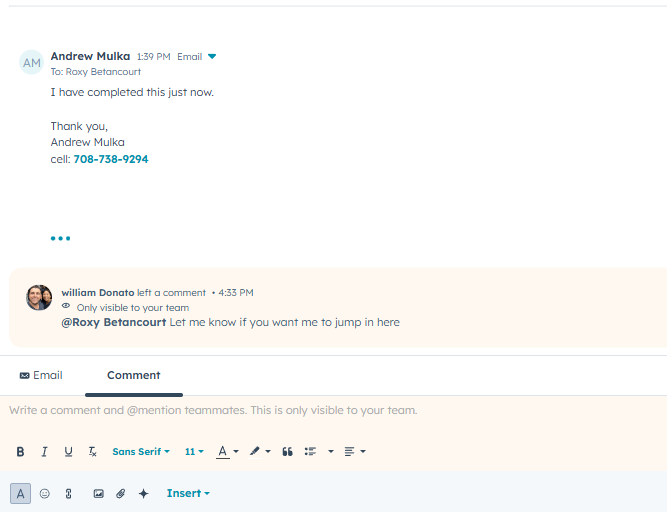
- Use the Comments tab for internal notes and collaboration
- You may @mention team members when help or clarification is needed
- Comments are internal and not visible to the client
Important:
- The Comments tab appears bold when a new comment is added
- Always check comments before responding or closing a ticket
Ticket Reassignment Process
If a ticket should be owned by someone else:
- Locate Ticket Owner in the top-right corner
- Reassign to the appropriate team member or CS Lead
- The new owner will receive a notification
Best Practice:
- Leave a comment explaining why the ticket was reassigned
- This ensures clarity and prevents dropped conversations
Ticket Summary
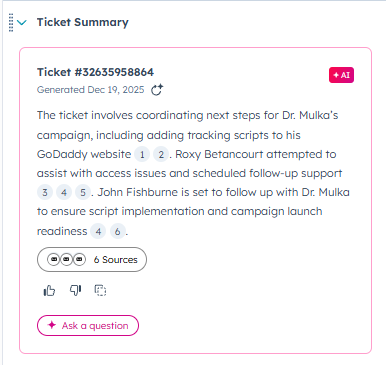
- The Ticket Summary provides a quick description of what the ticket is about
- Review this before responding to understand context quickly
- Update it if clarity is needed for future reference
Success Criteria / KPIs
- Inbox maintained near zero
- No unattended “Client Has Responded” tickets
- Clear ownership on every ticket
- Timely responses and clean closures
Related SOPs
- Managing the Customer Journey Pipeline
- Leveraging the Creative Team for Client Support
- Leveraging the Paid Ads Team for Client Support
- Understanding CI Alerts and the Escalation Pipeline