![DentalMarketing-Logo2-White copy.png]](https://grow.dentalmarketing.com/hs-fs/hubfs/DentalMarketing-Logo2-White%20copy.png?height=40&name=DentalMarketing-Logo2-White%20copy.png)
To successfully transfer and launch your WordPress website with Dental Marketing, we require specific access to ensure everything is set up correctly, securely, and without downtime.
The preferred and fastest method is to create an Admin user for our team. If that is not possible, you may provide your website files instead. Domain access is required in all cases to go live.
Go-Live Requirements (Required)
To proceed with the website transfer and launch, all of the following must be provided:
- ✅ WordPress Admin access or website files & database
- ✅ Domain access (registrar or DNS provider)
Without these, we will not be able to complete the launch.
Option 1 (Recommended): Create a WordPress Admin User
Creating an Admin user is the best and most secure way for our team to transfer your site efficiently.
Step 1: Log in to WordPress
- Visit yourwebsite.com/wp-admin
- Enter your login credentials
- Click Log In
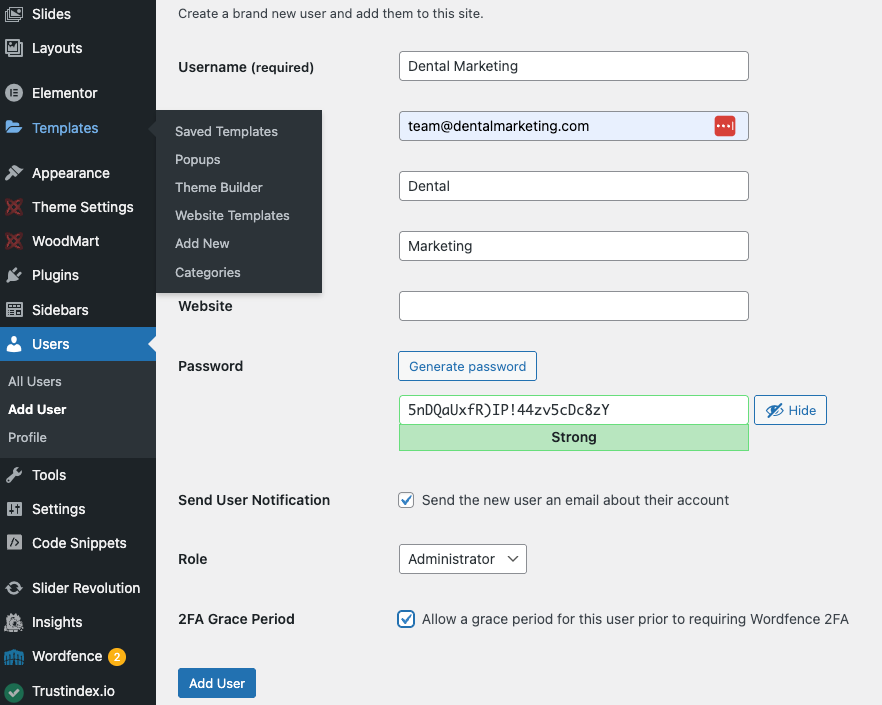
- Click Users in the left-hand menu
- Select Add New
- Complete the required fields:
- Username: Dental Marketing
- Email Address: team@dentalmarketing.com
- First Name / Last Name: Dental Marketing
- Click Show password to generate one
Or Enter a custom password - Please save and share these credentials with our team.
- From the Role dropdown, select Administrator
- Click Add New User
Once completed, notify our team so we can proceed.
Option 2: Site Files.
If you or your current website provider is unable to create an Admin user for our team, please have them provide the website files instead. This option can be used when Admin access is not available.