![DentalMarketing-Logo2-White copy.png]](https://grow.dentalmarketing.com/hs-fs/hubfs/DentalMarketing-Logo2-White%20copy.png?height=40&name=DentalMarketing-Logo2-White%20copy.png)
Step 1: Enable Automatic Meeting Notes and Transcripts (One-Time Setup)
- Go to meet.google.com using your DentalMarketing.com email.
- Click the Settings icon in the top right corner.
- Click the “Meeting recordings” tab.
- Check the boxes for:
- “Take notes with Gemini”
- “Transcribe the meeting”
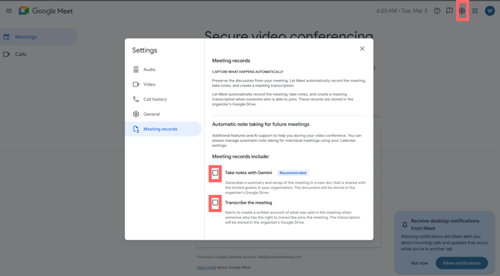
This ensures your meetings will automatically generate AI notes and transcripts going forward.
Step 2: Start Notes and Transcription Before Each Call
Even if the feature is enabled in settings, you must confirm it when joining each meeting.
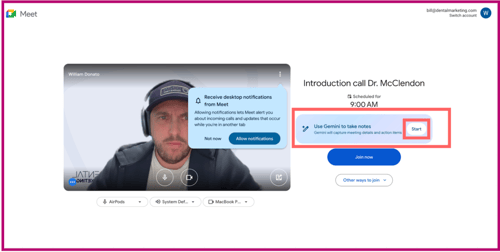
- When joining the Google Meet call, select:
- “Use Gemini to take notes”
- “Use Gemini to take notes”
2. Click “Start.”
- “Let Gemini take notes for this meeting.”
4. Click “Start” again to confirm.
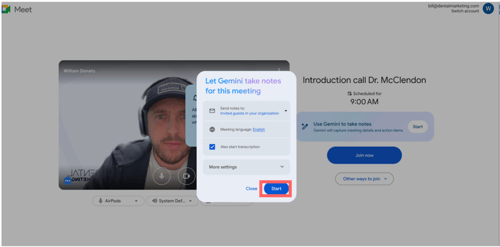
If you do not click “Start,” the meeting will not generate notes or transcripts.
Step 3: Where to Find Your Call Notes and Transcripts
After the meeting ends, Google automatically saves your files in Google Drive.
Folder Location:
My Drive > Meet Recordings
Google creates this folder automatically.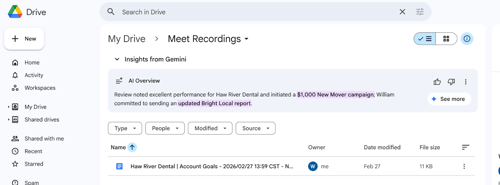
What You Will See:
Inside the folder, you will find:
- A Google Doc named after your meeting (this contains Gemini meeting notes)
- If transcription was enabled, a separate Google Doc with the full transcript
Both files are saved automatically.
Step 4: Reviewing Notes and Transcripts
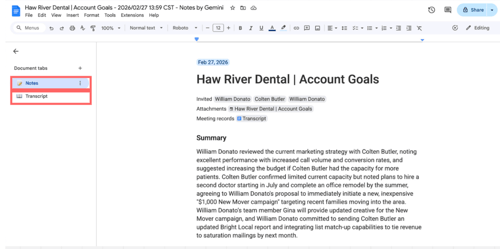
When you open the meeting notes document:
- The “Notes” tab will show Gemini’s AI summary.
- The “Transcript” tab will show the full conversation transcript.
You can:
- Copy key action items
- Use the summary for follow-up emails
- Add notes directly into HubSpot
- Share the document with your team if needed
Important Reminders
- You must use your DentalMarketing.com email.
- You must click “Start” inside the meeting for Gemini to activate.
- If you forget to start it, notes and transcripts will not be created.
- All recordings are automatically stored in Google Drive under “Meet Recordings.”