![DentalMarketing-Logo2-White copy.png]](https://grow.dentalmarketing.com/hs-fs/hubfs/DentalMarketing-Logo2-White%20copy.png?height=40&name=DentalMarketing-Logo2-White%20copy.png)
Confirm the Admin portal connects to the correct HubSpot company profile.
-
- Go to admin.dentalmarketing.com, click into the company, then click the HubSpot icon.
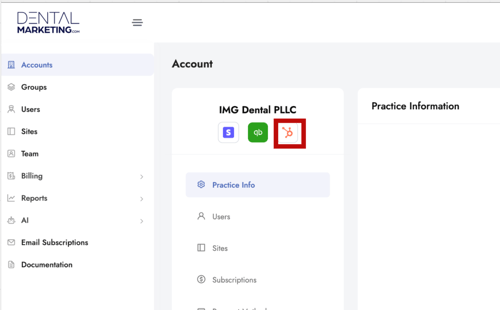
- Clicking the icon should take you to the correct company in HubSpot.
- If it does not, and there are duplicate companies, create a test tech task to merge them. (slack channel #technology-requests)
- Confirm Correct Google My Business Profile is Linked on Dashboard
- Go to the customer’s dashboard: https://my.dentalmarketing.com. Check the number of reviews listed. It should match the live Google Business profile.
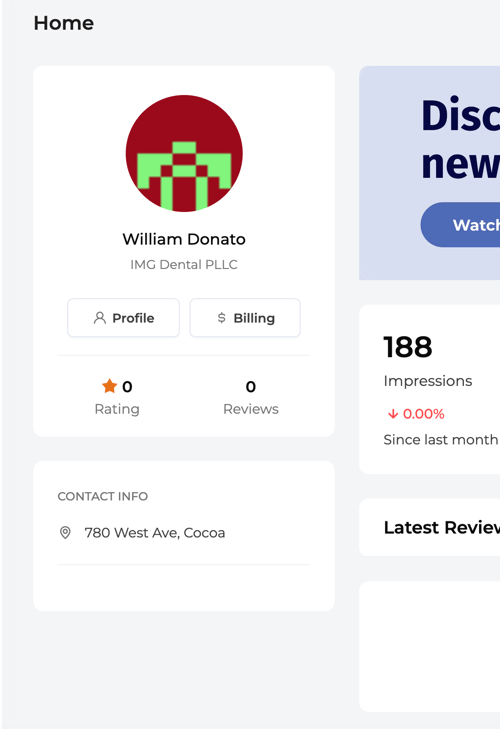
- Go to the customer’s dashboard: https://my.dentalmarketing.com. Check the number of reviews listed. It should match the live Google Business profile.
- Go to admin.dentalmarketing.com, click into the company, then click the HubSpot icon.
i. If the review count is missing or incorrect, it’s likely the wrong Google profile is linked.
b. To fix:
-
-
- Go to Admin Portal > Account > Integrations > Google Place
- Click Remove to disconnect the incorrect profile
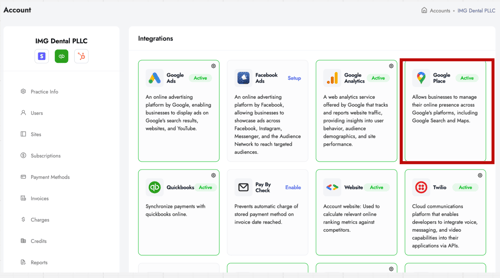
iii. Then re-add the correct Google Business profile:- Type in the business name + first 3 numbers of the address
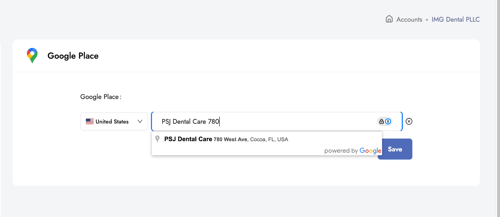
- Type in the business name + first 3 numbers of the address
-
c. Return to the customer dashboard and confirm the review count now matches correct Google my business profile.
3. Confirm Dashboard is Correctly Set Up
a. Reports are active: Customer should be receiving the following reports:
https://my.dentalmarketing.com/reports
i. Missed Opportunity (Daily)
ii. Missed Call (Daily)
iii. Monthly Report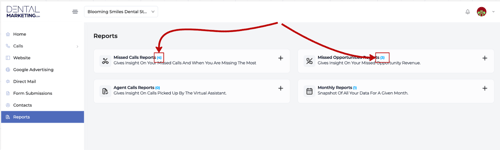
b. Google Ads and Website tab are connected: Confirm data is displaying in the dashboard.
https://my.dentalmarketing.com/ads 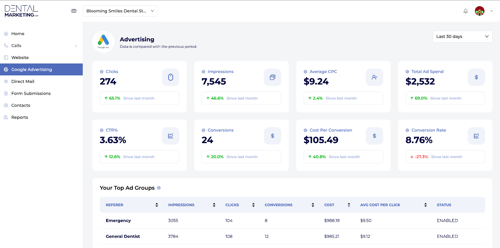
c. Call tracking numbers are set up: Make a test call to ensure numbers are working and call data is showing.
https://my.dentalmarketing.com/calls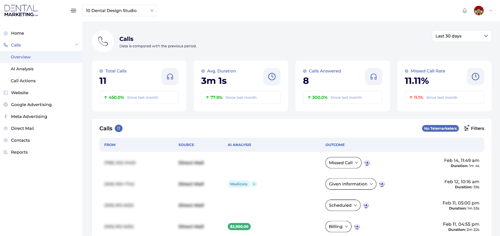
d. For Multi-location Clients Only: Confirm Unified Insights is active and the user has access to all locations from one login.
https://demo.dentalmarketing.com/unified-insights
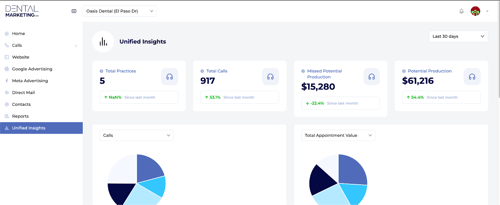
4. Confirm SEO Agent is Configured
a. Google My Business Access: Confirm we have access to the client’s GMB under team@dentalmarketing.com.
https://business.google.com/u/3/organizations/105996117676274576146/overview
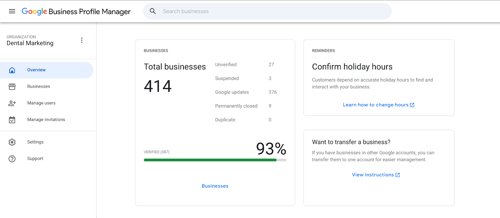
b. Search Console Access: Confirm a Google Search Console property has been created and verified under team@dentalmarketing.com
i. https://search.google.com/search-console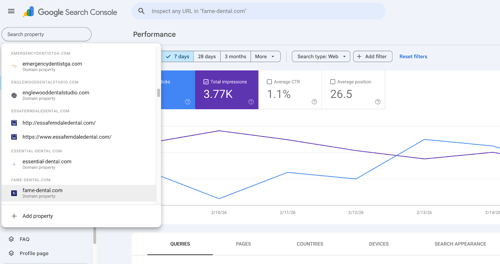
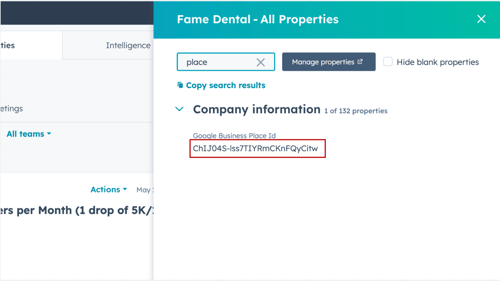
c. Google Place ID: Confirm the correct Google Place ID is being used
i. Go to the HubSpot company record
1. Click Actions > View All Properties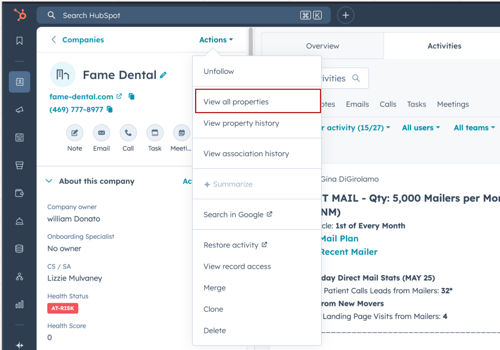
ii. Search for “place” to view the current Google Business Place Id
iii. Then go to the Google Place ID Lookup Tool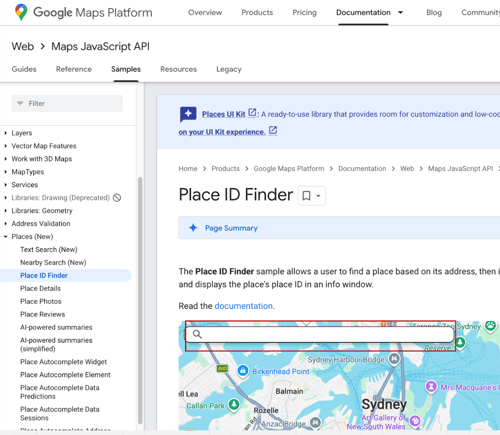
iv. Search using the Google Business name plus the first three numbers of the address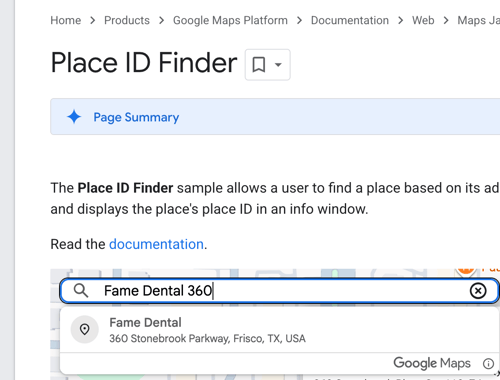
v. Confirm it matches the Google Business Place Id in HubSpot
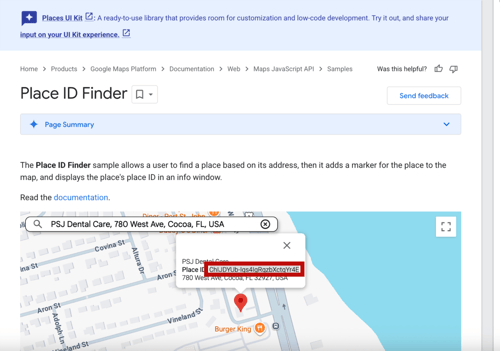
d. HubSpot Company Status: Make sure the HubSpot company is set to Active. This should auto-update if the correct company is linked in the Admin Portal.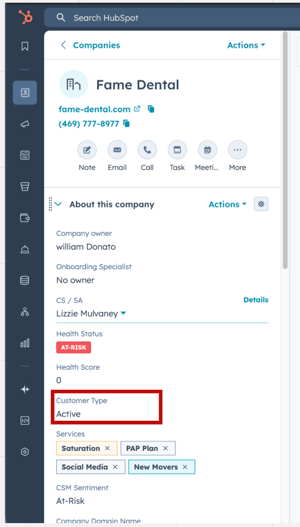
e. Confirm if we have website access
i. Navigate to the Company Profile in HubSpot
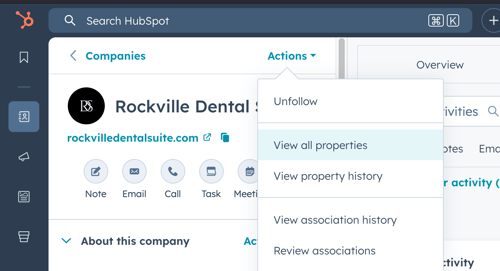
ii. Click on actions > Click on view all properties
iii. In the search bar, type: Website Access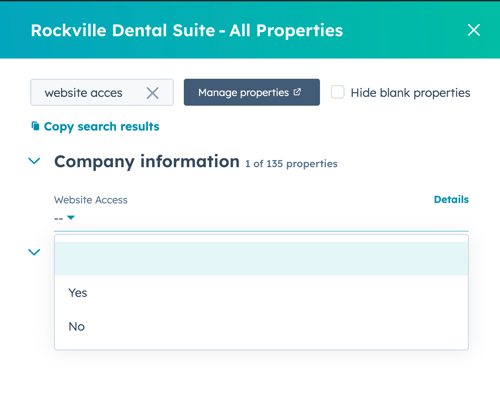
iv. Yes = We have backend website access
v. If “no” or left blank
1. Next step: Post in the #technology-requests Slack channel using the template below:
a. @tech please confirm if we have backend website access for: [Enter Domain Name]
5. Confirm Call Tracking Numbers Are Correctly Set Up and Deployed
a. Google My Business Tracking Number: Confirm the GMB tracking number is active and displaying on the profile.
b. Google Ads Tracking Number: Confirm a call tracking number is assigned for Google Ads and is active.
c. Website Phone Number Tracking: Confirm the website number is being tracked and call data is coming through.
d. Number Destination & Area Code:
-
-
- Confirm all tracking numbers route to the correct office phone number
- Make sure the area code matches the city or town of the practice
-
6. Confirm Google Ads Dynamic Number Insertion (DNI) Script Is Working
This step confirms the Google Ads dynamic phone number swap script is installed and functioning on the website.
a. Open the Website in a Private / Incognito Window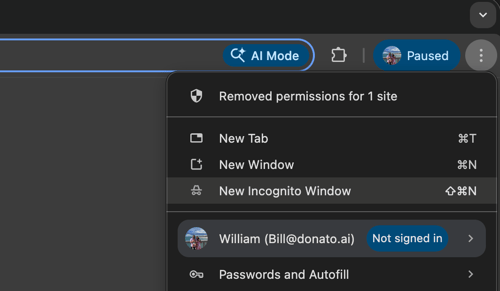
Then:
i. Visit the homepage normally (without any parameters)
ii. Look at the phone number displayed on the homepage
For the Fame Dental example, the starting homepage phone number should be: (469) 275-1054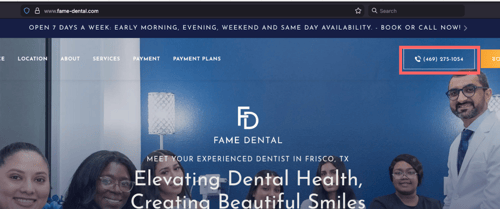
This is important because the phone number should change after we test the DNI parameter, and you will need the original number to confirm the swap is working correctly.
Important: Always open the site in a private or incognito window.
If you have previously visited the site through Google Ads, the number swap may not trigger due to browser cookies.
b. Test the DNI Parameter
i. Add the following parameter to the homepage URL: ?network=g
ii. Example: https://www.fame-dental.com/?network=g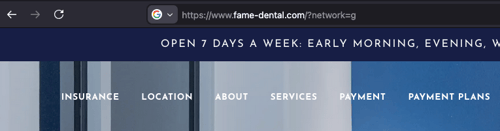
c. Confirm the Phone Number Swaps
If the script is installed correctly:
-
-
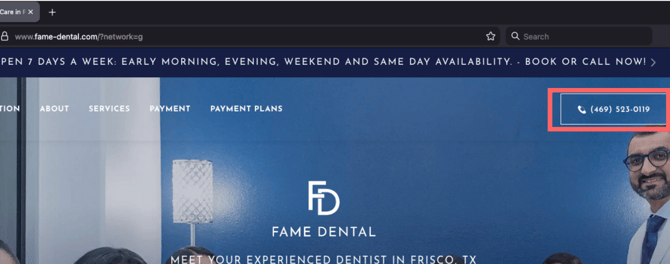
- The website phone number should change
- It should swap to the Google Ads tracking number
- For the Fame Dental example:
- Original homepage number: (469) 275-1054
- After adding the DNI parameter:
https://www.fame-dental.com/?network=g - The phone number should swap to: (469) 523-0119
-
d. If the DNI Script Is Not Working
If the phone number does not swap after testing the DNI parameter (?network=g), this means the Dynamic Number Insertion (DNI) script is not working correctly.
i. Create a High Priority task in HubSpot.
ii. Assign the task to the Company Contact Owner.
1. Task title: Install Dynamic Number Insertion Script
2. Description: Dynamic Number Insertion (DNI) script was tested and is not working. Test performed using: /?network=g
The website phone number did not swap to the Google Ads tracking number. Please install or repair the Dynamic Number Insertion script so Google Ads call tracking works properly.
7. Confirm Google My Business Page Is Optimized
-
- Review the GMB page to ensure it meets all optimization standards. Refer to the SOP here: How Do I Optimize a Client’s Google My Business Account?
- If the page is not optimized, create a task in HubSpot to complete the optimization.
- Create a hubspot task to “Optimize a Client’s Google My Business Account” the Hubspot company owner.
8. Final Step: Move Ticket to OB Completed
Once all QA steps above are fully verified and confirmed:
-
- Go to HubSpot
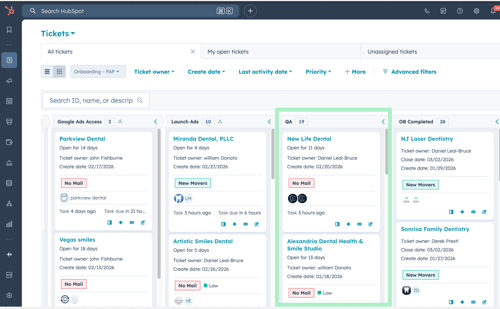
- Navigate to the Onboarding – PAP pipeline
- Locate the customer’s onboarding ticket
- Move the ticket to Stage: OB Completed