![DentalMarketing-Logo2-White copy-1.png]](https://grow.dentalmarketing.com/hs-fs/hubfs/DentalMarketing-Logo2-White%20copy-1.png?height=40&name=DentalMarketing-Logo2-White%20copy-1.png)
The SA or OB specialist will connect with new clients and either walk them through how to create their own Google Ads account or provide them with the instructions so they can do it themselves.
- If we received an invite via the Google Ads Bot, we can accept that invite link directly from the Slack channel
-
Otherwise, go to team@dentalmarketing.com email and look for an email invite with access to a Google Ads account
-
Make a note of who the access was sent from
-
Click ‘Accept Invitation’ to accept and open the individual account access
-
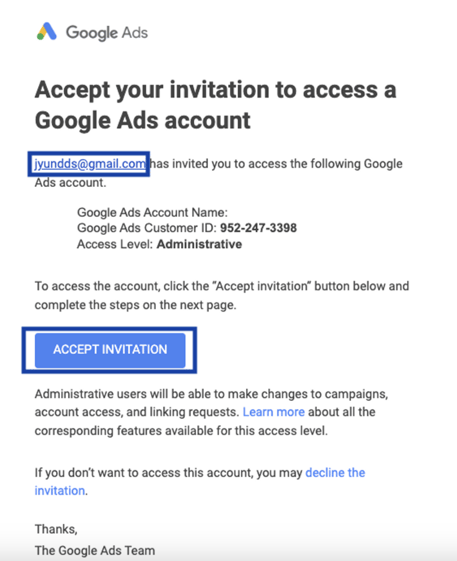
- If the view looks weird, you can adjust that under Settings > Click ‘Switch to Expert Mode’
-
Once you switch to Expert Mode, you can go to Settings (left side menu) > Account Settings > Add the practice name to the Google Ads account if it’s not already listed
- Note: You can confirm with OB what practice the account is for based on the email that sent us the access
-
Under Tools & Settings > Billing > Settings > Review the Payment Profile to see if it has ‘Organization’ listed as the account type
-
If it does say 'Organization', then we need the client to add us as a Payment User to the Payment Profile
-
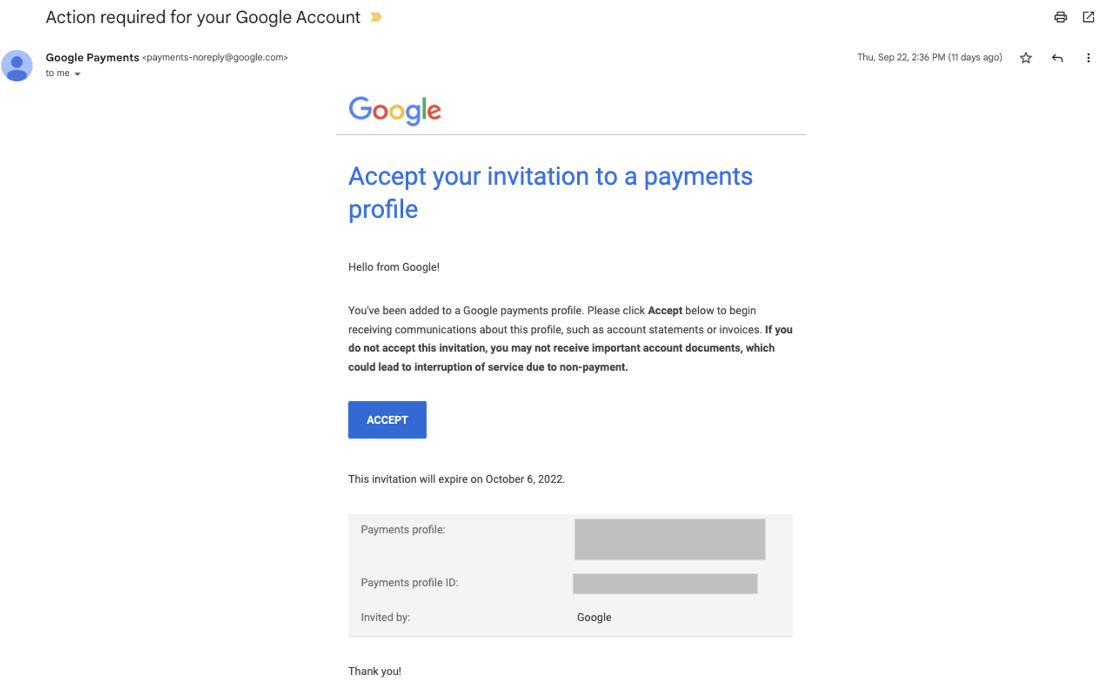
If they’ve already added us as a Payment User, then we should have a separate email to accept that invite (see example below)
-
-
-
- Once we accept the payment user invite, double-check to make sure they gave us 'Admin with all permissions' access
- If they didn't, then let the SA/OB specialist know to request the client to upgrade the access accordingly
- Once we accept the payment user invite, double-check to make sure they gave us 'Admin with all permissions' access
-
-
If it says ‘Individual’ instead, then we need to request for the SA/OB specialist to have the client submit CC info to us so we can update the Payment Profile on their behalf (they cannot send us payment user access if it's an 'Individual' payment profile)
-
- If any existing campaigns are active in the account, leave them running and flag this to the SA/OB specialist so they are aware
- Note: If we notice recently paused campaign, check with the SA/OB specialist to see if the client wants them re-enabled until our new campaigns are live. We'll only re-enable them if SA/OB confirms.
-
Copy the Account ID listed in the top-right corner of the individual Google Ads account, then switch to our Dental Marketing MCC (under your personal work email)
- Under Settings > Sub-Account Settings > Click the blue ‘+’ > Click ‘Link Existing Account’ > Enter the Account ID > Click ‘Send Request’
- Switch back to the individual Google Ads account and go to Tools & Settings > Setup > Access & Security > Managers > Click to ‘Accept’ the request > Click ‘Grant Access’ to confirm
- Switch the 'Dental Marketing' MCC to the owner for the account

- Go back to the MCC, refresh and search for the practice name to make sure the account has in fact been linked to the MCC successfully
-
Confirm in the #dm-onboarding-and-trade-desk thread that the access invite has been accepted for X practice and we’ve added the account to our MCC
- Note: Add notes if we need the OB specialist to get CC info, have the client add us as a payment user, if existing campaigns are running, etc. and also add these items to the Priority List for easy follow up
- If we have received BOTH account access AND payment user access, then after we link to the MCC and switch ownership, we can remove the individual user access for "team@dentalmarketing.com"
- To do this, go back to Access & Security > Users > Click 'Remove Access' for team@dentalmarketing.com
- Once this has been removed, refresh and make sure you can still access the account under our MCC
- To do this, go back to Access & Security > Users > Click 'Remove Access' for team@dentalmarketing.com
- If we are missing payment user access and/or need to update the payment profile from 'Individual' to 'Organization', please add this item to the Priority List for visibility and easy follow up.
Video Overview: