![DentalMarketing-Logo2-White copy-1.png]](https://grow.dentalmarketing.com/hs-fs/hubfs/DentalMarketing-Logo2-White%20copy-1.png?height=40&name=DentalMarketing-Logo2-White%20copy-1.png)
Scope
This procedure applies to all team members responsible for adding clients to their dashboard.
Procedure
1. Access the Admin Portal
- Navigate to
admin.dentalmarketing.com. - If you do not have access, contact the technology team to get the necessary credentials.
2. Log In
- Click "Continue with Google."
- Select your Donato AI email account to log in.
3. Locate the Client Practice
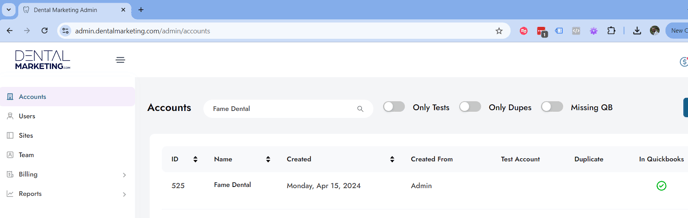
- Use the search bar at the top to locate the practice (e.g., Fame Dental).
- Select the appropriate practice from the list.
4. Add Client as a User
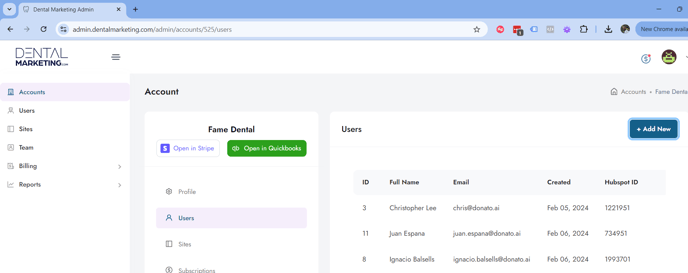
- Navigate to the "Users" section for the selected practice.
- If the client is not already listed, click the "Add New" button.
- Select the "Existing Users" tab, type their name, and add them to the account.
- If the client is not found under "Existing Users", use the "New Users" tab.
⚠️ NOTE: You must manually send the login credentials to the client, the system WILL NOT automatically send the login information to the client.