![DentalMarketing-Logo2-White copy-1.png]](https://grow.dentalmarketing.com/hs-fs/hubfs/DentalMarketing-Logo2-White%20copy-1.png?height=40&name=DentalMarketing-Logo2-White%20copy-1.png)
Introduction (Video)
Assets needed
- Onboarding Form containing the necessary information.
- This can be found in the Asana task tree or in the Slack channel.
What is a content outline document?
An outline for a website/landing page content document is a structured plan or framework that outlines the key elements, sections, and topics to be included in the content of a website or landing page. The outline helps ensure that all necessary information is covered and helps maintain consistency and coherence in the final content.
In this SOP, you will find the step by step guide on how to create a content outline document:
Step 1: Basic Information
Open the Template
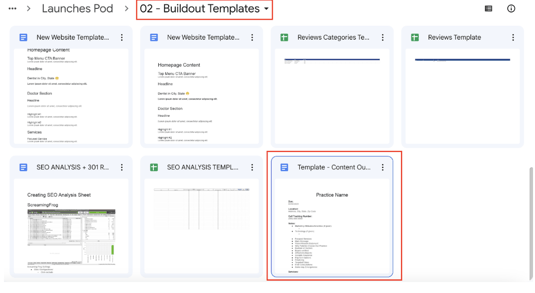
- Navigate to the Buildout Templates Folder.
- Locate the 'Template -- Practice Name Content Document' file.
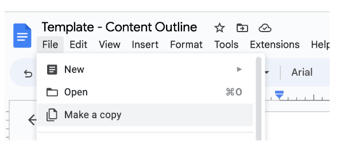
Make a Copy of the Template
- Open the file.
- Click on 'File' and select 'Make a copy' to create a duplicate.
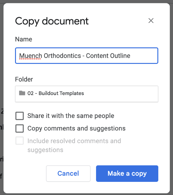
Rename the File
- Rename the copied file as '[Practice Name] - Content Outline.
- Replace '[Practice Name]' with the actual name of the client's practice.
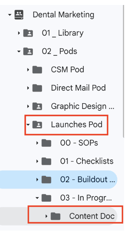
Select the Content Doc Folder
- Navigate to the 'Content Doc' folder.
- File path: Dental Marketing > 02 Pods > Launches Pod > 03 In-progress Build-outs > Content Doc.
Input Information from the Onboarding Form
- Refer to the Onboarding Form provided for the necessary information.
- Fill in all relevant details for each category in the content document.
- You can leave the 'Due Date' and 'Call Tracking Number' fields blank for now. These will be filled in during the review/assignment process.
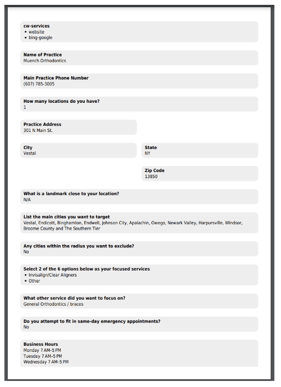
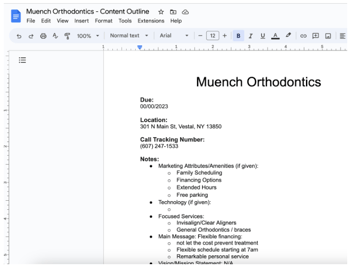
Step 2: Additional Information
Services Listing and Customization
- List all services exactly as they appear on the Onboarding Form.
- Remove any services from the list that the client does not offer.
- If the client offers additional services not listed on the form, copy and paste them into the service list.
- If no answer was provided for a specific field, you may leave it blank or mark it as N/A (Not Applicable) to indicate that the information is not available.
By accurately representing the client's services and addressing any omissions or additions, we ensure that the website reflects the client's offerings in a clear and comprehensive manner. The use of N/A helps maintain transparency when specific information is unavailable.
We invite you to put your knowledge to the test about content outlines! Challenge yourself by filling out the following questionnaire and see how well you've grasped the key concepts discussed in this session. It's a great way to reinforce your understanding and discover areas where you excel or might want to explore further.