![DentalMarketing-Logo2-White copy-1.png]](https://grow.dentalmarketing.com/hs-fs/hubfs/DentalMarketing-Logo2-White%20copy-1.png?height=40&name=DentalMarketing-Logo2-White%20copy-1.png)
What is an Optimization Score?
- An optimization score is a real-time estimate of how well your Google Ads account is set to perform.
- Scores run from 0-100%, with 100% meaning that your account can perform at its full potential.
- Along with the score, you’ll see a list of recommendations that can help you optimize each campaign. Each recommendation shows how much your optimization score will be impacted (in percentages) when you apply that recommendation.
- Applying or dismissing these recommendations changes the overall optimization score of your account.
How to Check Your Optimization Score?
-
Sign into your Google Ads account, if not already done so, and view your account at the MCC level. “Dental Whale Marketing Clients” should be visible with no specific client selected.
-
On the left-hand side navigation, select “Recommendations” which is right below “Overview”.
-
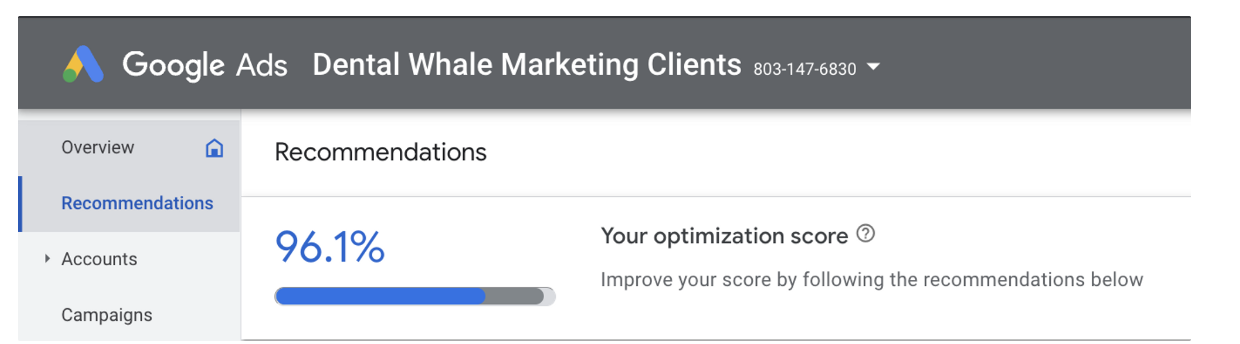
Your account's overall optimization score will be displayed in big blue letters along with a progress bar
-
-
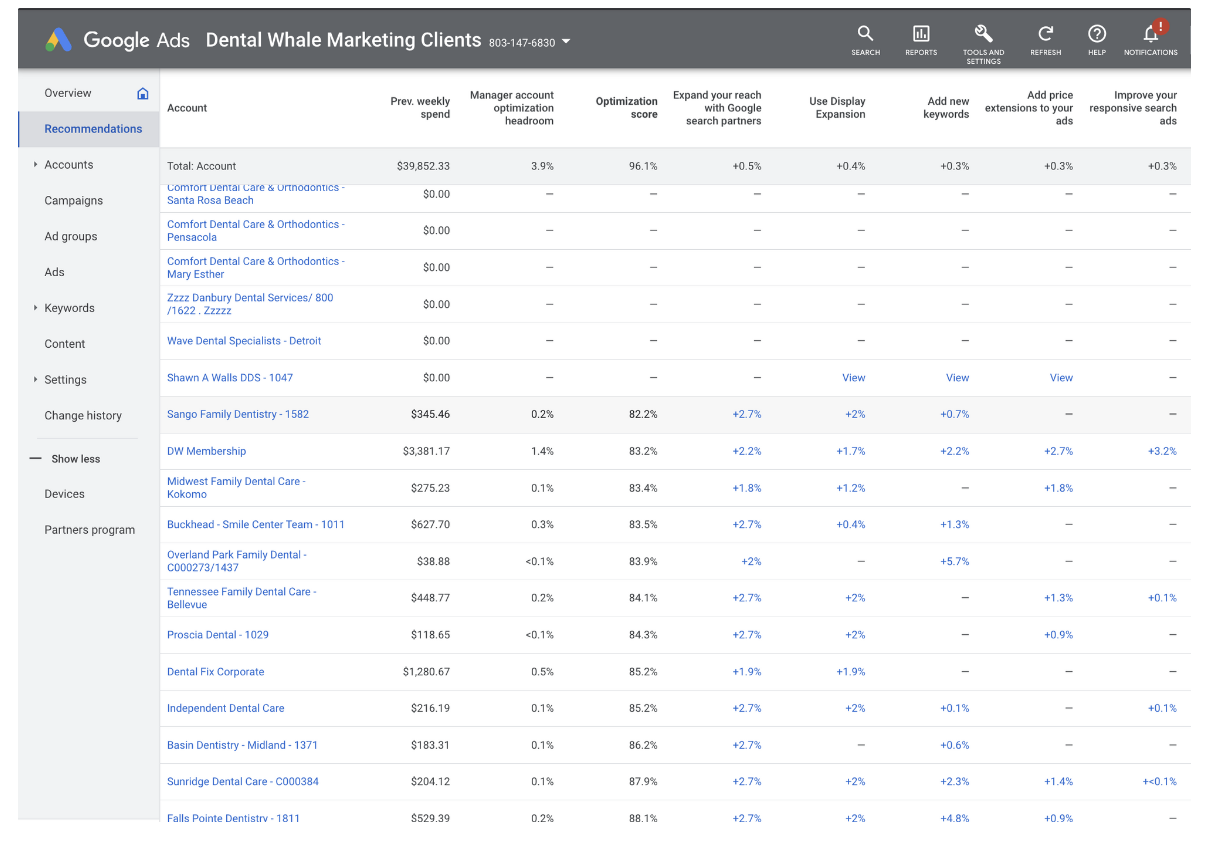
Below you will find all the individual client accounts listed, under “Account” column, with their optimization score, under the “Optimization Score” column.
-
Click on the “Optimization Score” column so that the accounts re-order
-
One-click will order accounts from highest to lowest
-
Two clicks will order accounts from lowest to highest (prefered)
-
How to Optimize your Score?
-
You may start optimizing the accounts with the lowest scores as they will make the most impact on your account’s overall score
-
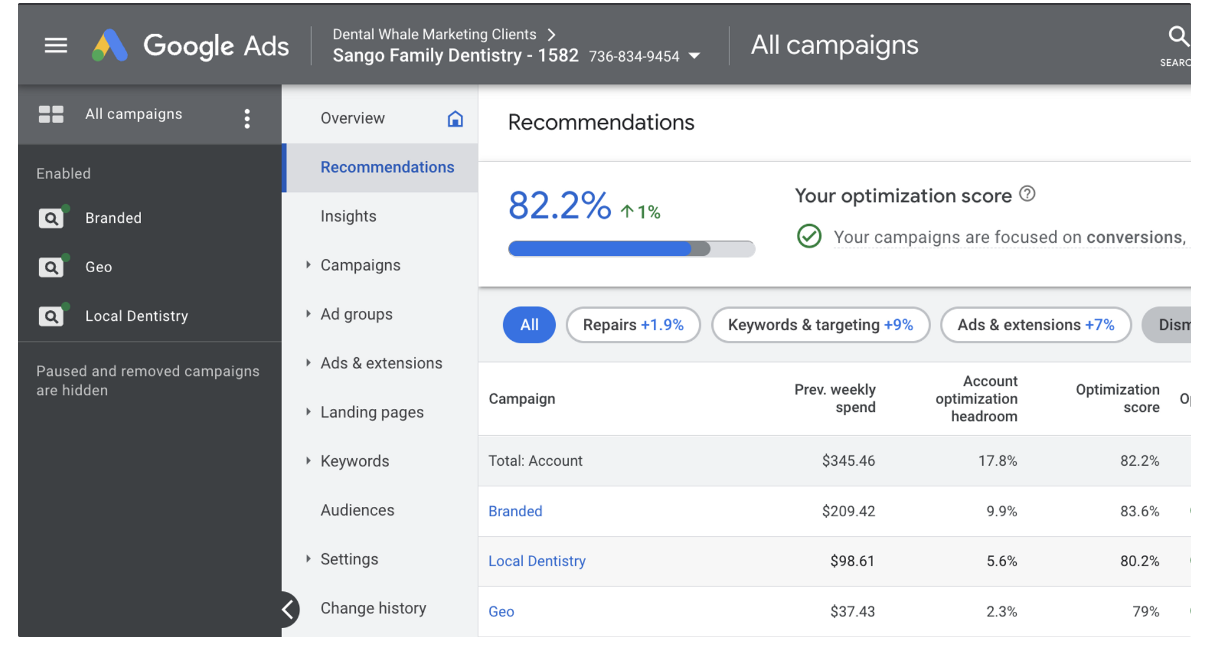
Click on an account to view their individual optimization score along with a campaign-by-campaign breakdown.
-
Select a campaign to optimize
-
-
Each recommendation lives in its own title and shows how the score is improving as you go
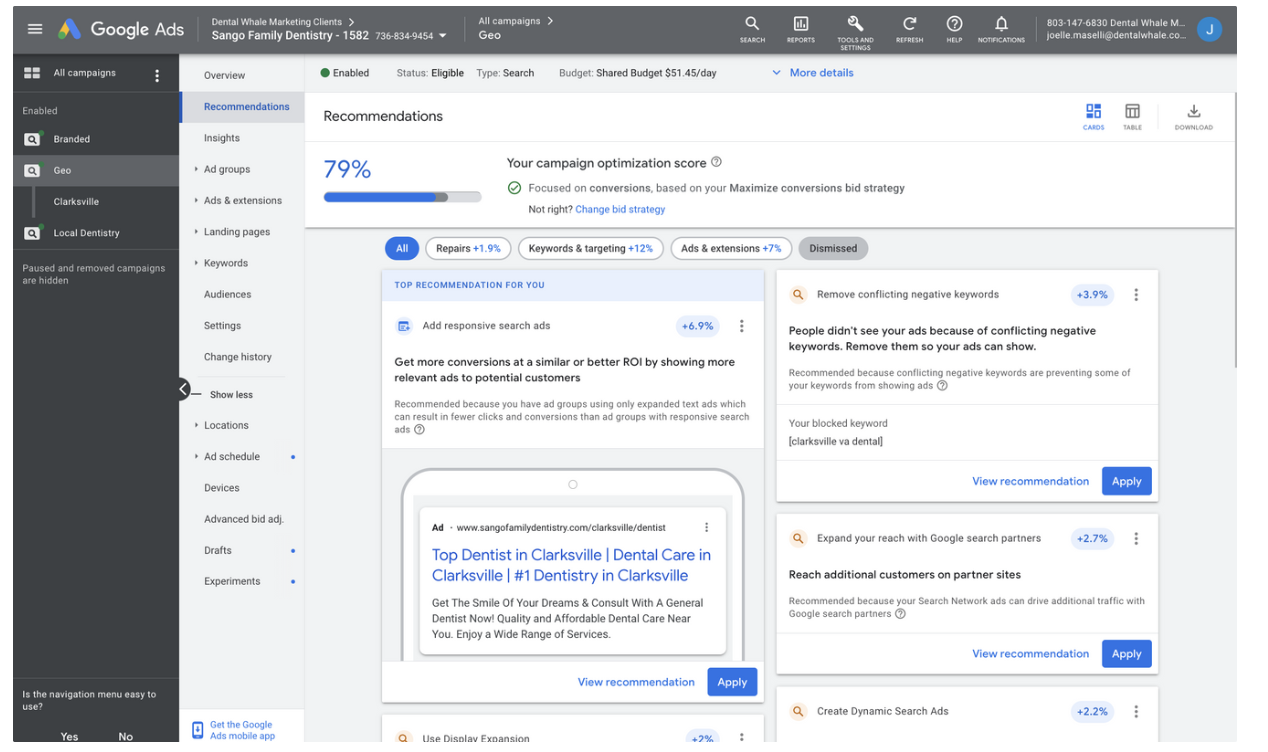
- Read each tile and dismiss the recommendation(s) if it is not applicable for the account or a feature we aren't interested in applying
- To dismiss a recommendation, click the three stacked grey dots in the top right of the tile
- Click “Dismiss All”
- Select “Other”
- Click the “Dismiss All” Button”
- The majority of the recommendations will be dismissed except for the following:
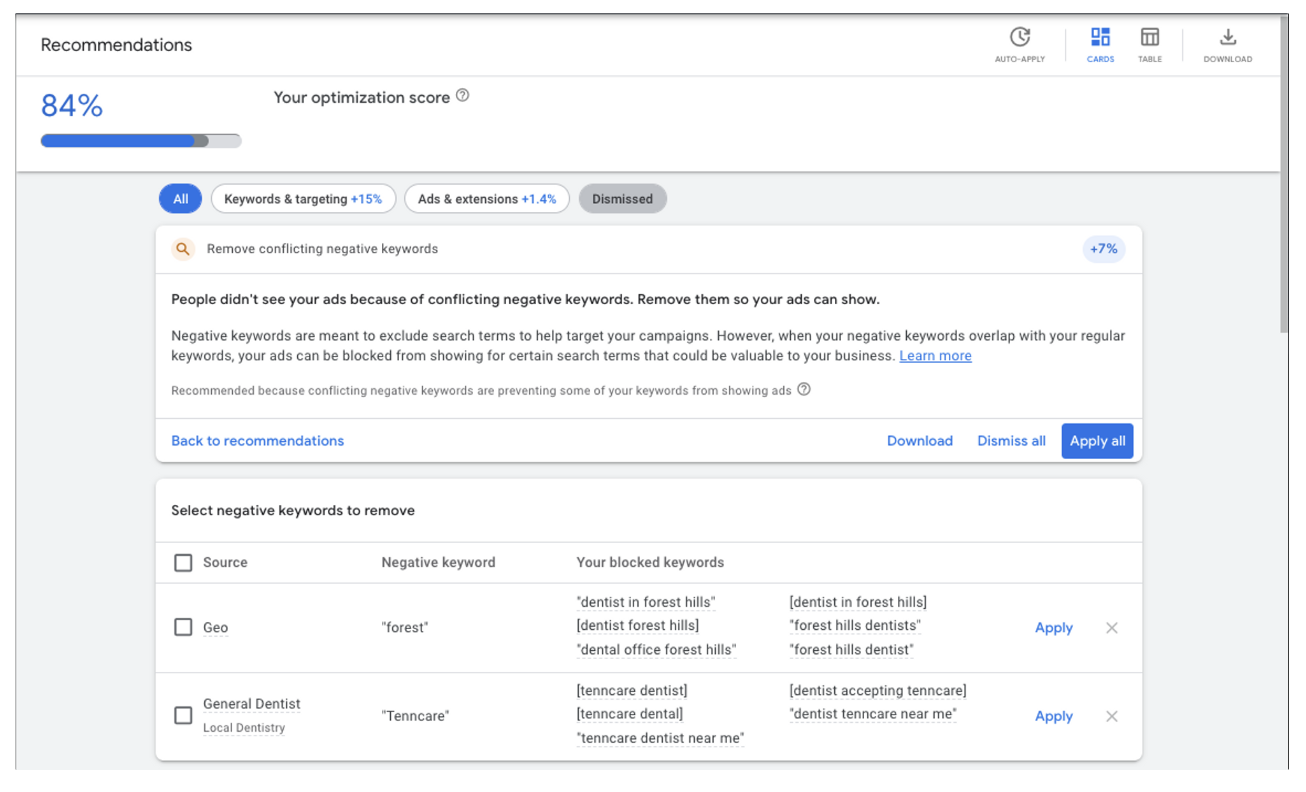
- “Remove conflicting negative keywords” from your account
- View the individual keywords and apply the recommendations
- “Remove conflicting negative keywords” from your account
- Repeat this process for all campaigns on your select account
- Go back to the account level optimization score dashboard and continue this process for other clients until the score has lifted to an ideal amount for the week.
Update Cadence: Weekly (Friday)
Minimum Score: 70%
Ideal Score: 90-95%
Note: If our account ever dips below our minimum goal of 70%, we run the risk of losing our partnership status with Google