![DentalMarketing-Logo2-White copy-1.png]](https://grow.dentalmarketing.com/hs-fs/hubfs/DentalMarketing-Logo2-White%20copy-1.png?height=40&name=DentalMarketing-Logo2-White%20copy-1.png)
Create Zaps for Instant Forms
-
Log into Zapier: https://zapier.com/app/dashboard
- Use chris@donati.ai to login (password should be in LastPass)
-
Click on Zaps > Facebook Lead Ads
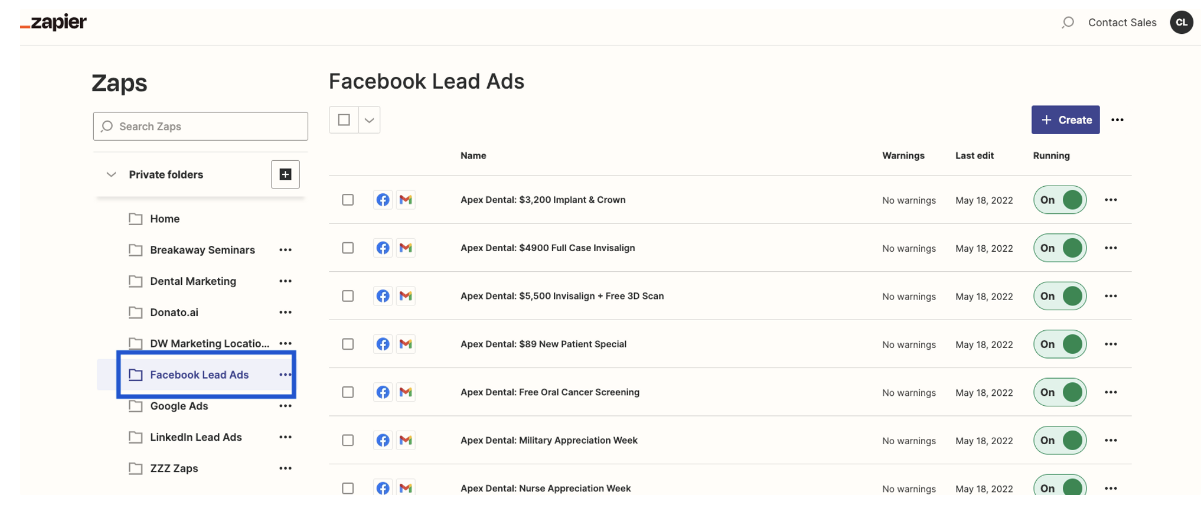
Email Zap:
- Duplicate any existing email Zap and click into the 'copy' version
- Duplicated Zap will populate as a draft with “Copy:” in the beginning of the name
- Click on the newly created Zap and rename it accordingly
- Naming format: ‘Client Name: Offer' (i.e. PAS Smiles: $99 New Patient Special)
- Note: The offer should match the form name created on Facebook
- Naming format: ‘Client Name: Offer' (i.e. PAS Smiles: $99 New Patient Special)
- Under 'Setup':
- App : Facebook Lead Ads (1.1.8)
- Account: Facebook Lead Ads leahpartyka@yahoo.com #2
- Click on Continue
- Under 'Configure':
- Page: Select your client's page
- Form: Select the proper Instant Form
- Click on Continue
- Under 'Test':
- Leave the default record
- Click on continue with selected records
- Send Email to Gmail
- App: Gmail
- Event: Send Email
- Account: flex@donato.ai
- Set Up Action
- Set 'To' email to the client's contact email
- Ensure 'From' is set to support@
- Change the 'Subject' to whatever the offer is (i.e. New Facebook Lead - $99 New Patient Special)
- Change the 'Body' to reference the client name in the greeting and the specific offer in the body
- Sent Test
- Send a test email to the client and notify the Marketing Strategist
- Client to confirm the email was received
- Send a test email to the client and notify the Marketing Strategist
- Publish Zap
- Set Zap live (the Zap is not live until the toggle is switched on)
SMS Zap (Text Message)
- Duplicate any existing SMS Zap and click into the 'copy' version
- Duplicated Zap will populate as a draft with “Copy:” in the beginning of the name
- Click on the newly created Zap and rename it accordingly
- Naming format: ‘Client Name: Offer - SMS' (i.e. PAS Smiles: $99 New Patient Special - SMS)
- Note: The offer should match the form name created on Facebook
- Naming format: ‘Client Name: Offer - SMS' (i.e. PAS Smiles: $99 New Patient Special - SMS)
- Click on Trigger
- Event: “New Lead” > Continue
- Choose Account
- Facebook Lead Ads leahpartyka@yahoo.com #2 > Continue
- Set Up Trigger:
- Page: Choose the client’s FB Page
- Form: Select the proper Instant Form
- Send SMS in SMS by Zapier
- App: SMS by Zapier
- Event: Send SMS
- Account: Create a new SMS account (this is the client’s number)
- To sync, a text message will be sent to the client’s phone number with an access code to provide and confirm
- CSM to work with the client to retrieve the code and share back with TD
- Once we receive the code, we can input into Zapier and the connection will be established so we can move on to the next step
- Set Up Action
- Enter the ‘from number’ (this can be whatever you want, but it’s just the number the client will receive a text from)
- Change the ‘Message’ to mention whatever the offer is (i.e. $99 New Patient Special lead from DW)
- Continue and test action to send a test text message to the client
- Publish Zap
- Set Zap live (the Zap is not live until the toggle is switched on)
Note: The process for setting up Email and SMS Zaps are similar. Be sure to duplicate the SMS Zap for SMS lead notifications and an email Zap for email lead notifications:
SMS: Email:
