![DentalMarketing-Logo2-White copy-1.png]](https://grow.dentalmarketing.com/hs-fs/hubfs/DentalMarketing-Logo2-White%20copy-1.png?height=40&name=DentalMarketing-Logo2-White%20copy-1.png)
SOP: Website Access / Transfer
Purpose
Ensure the technology team receives the correct information required to either:
- Gain admin access to a client website, or
- Transfer a client website to DentalMarketing.com hosting
This SOP ensures access is gathered correctly so we can install:
- SEO blogging agents
- Tracking scripts
- Marketing tools
Supported Platforms
DentalMarketing.com only works with the following platforms:
- WordPress
• Webflow
Before beginning this process, you must confirm the website platform.
If the website is not WordPress or Webflow, we do not proceed with access or transfer.
Phase 1: Confirm Website Platform
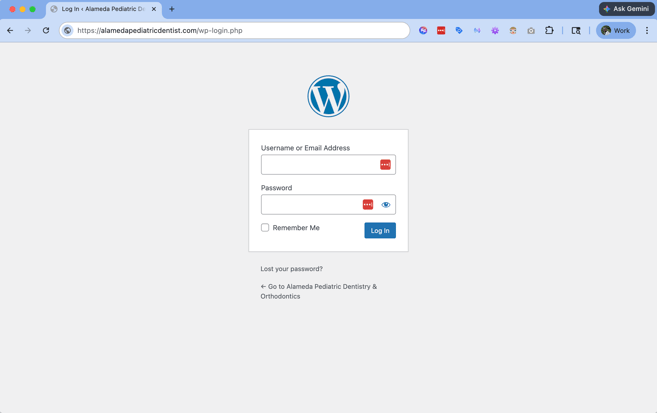
Method 1: Check WordPress Login
Add /wp-admin to the domain.
Example:
domain.com/wp-admin
If the WordPress login page appears, the site is WordPress.
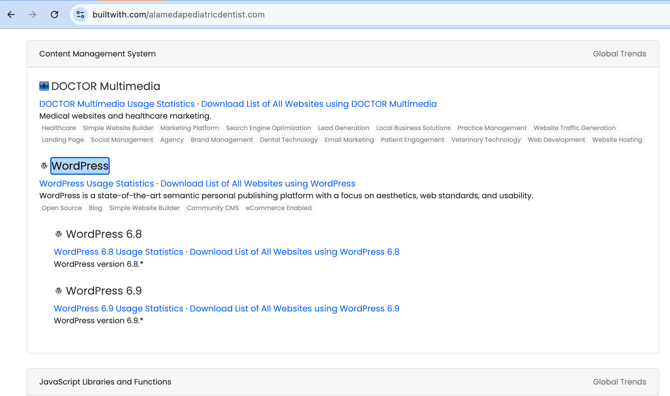
Method 2: Use BuiltWith
Visit:
https://builtwith.com
Enter the website domain.
BuiltWith will confirm the CMS platform, such as:
- WordPress
- Webflow
- Other CMS
If Website is NOT WordPress or Webflow
Stop the process.
Post a message in the company Slack channel.
Example channel:
pap-dentalcompany
Message template:
Confirming this website is not WordPress or Webflow.
We will not be transferring or requesting access to this website.
Phase 2: Identify the Scenario
Determine which scenario applies.
Scenario 1 — Website Access Only
The client keeps hosting their website but gives us admin access so we can install:
- SEO blogging agent
- Tracking scripts
- Marketing tools
Scenario 2 — Website Transfer
The client wants the website moved to DentalMarketing.com hosting.
Phase 3: Obtain Website Access
WordPress Sites
The client must provide:
- WordPress Login URL
- Username
- Password
Example:
domain.com/wp-admin
⚠️ Important
The username must be:
team@dentalmarketing.com
This is the only email address we use to manage website access.
Common Ways Access Is Sent
- The client emails the credentials directly to you
- The client emails credentials to team@dentalmarketing.com
- The client adds team@dentalmarketing.com as an admin user
Webflow Sites
The client must invite us to the project.
Invite:
flex@denado.ai
Required access level:
- Designer Access
or
• Admin Access
Phase 4: Test Login Access
Before creating a ticket, you must verify the login works.
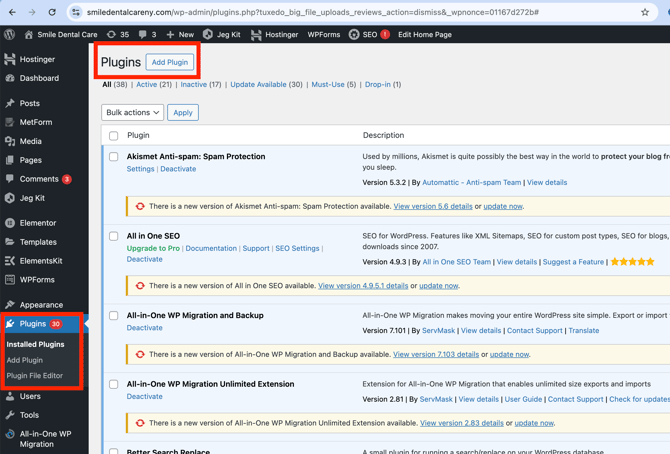
WordPress Verification
- Log into WordPress
- Confirm you have Administrator access
Verify access to:
- Plugins
- Users
- Settings
If you cannot install plugins, you do not have correct access.
Request updated credentials.
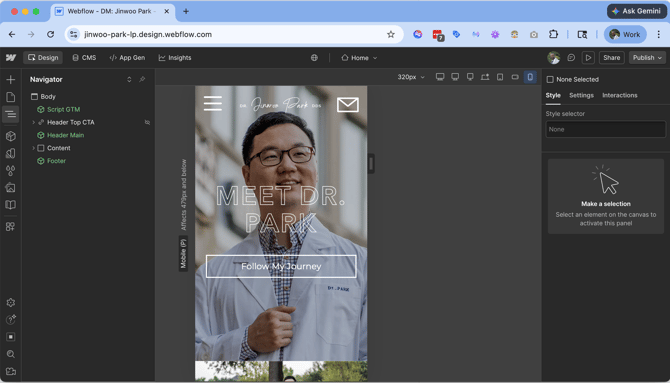
Webflow Verification
Confirm you can access:
- Webflow Designer
- Project Settings
Phase 5: Record Website Credentials in HubSpot
Credentials must be saved in the Company Record.
Create a Pinned Note.
Example:
WordPress
Login URL: domain.com/wp-admin
Username: team@dentalmarketing.com
Password: ********
Attach:
- Screenshot confirming login works
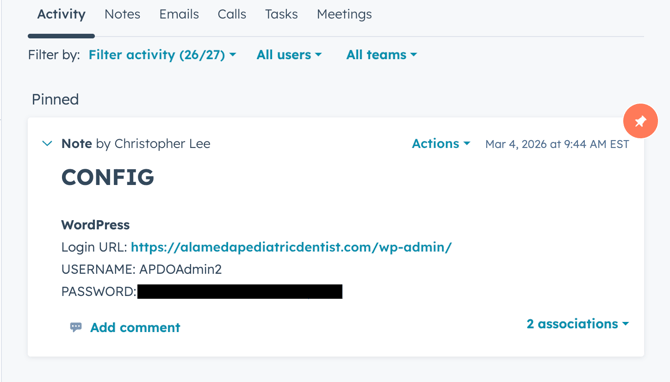
Pin the note.
Phase 6: Create HubSpot Ticket
Create a ticket in the HubSpot pipeline:
Onboarding - Website Transfer
Ticket name format:
[Client Name] – Website Access
or
[Client Name] – Website Transfer
Example:
Smile Culture – Website Access
Fame Dental – Website Transfer
Scenario 1 — Website Access Only
Create ticket and identify:
Website Access Only
Add login details in ticket.
Scenario 2 — Website Transfer
WordPress
Obtain WordPress admin login.
Create ticket:
Website Transfer
Add credentials.
Webflow
Share Webflow transition account:
flex@denado.ai
Ask the client to invite this email to their Webflow project.
Create ticket specifying:
Webflow Website Transfer
Definition of Done
The onboarding specialist's job is complete when:
✔ Website platform confirmed
✔ Scenario identified (Access or Transfer)
✔ Admin login obtained
✔ Login tested and verified
✔ Credentials saved in HubSpot company record
✔ Ticket created in Onboarding - Website Transfer