![DentalMarketing-Logo2-White copy-1.png]](https://grow.dentalmarketing.com/hs-fs/hubfs/DentalMarketing-Logo2-White%20copy-1.png?height=40&name=DentalMarketing-Logo2-White%20copy-1.png)
Step 1: Log Into the GMB Account
- https://business.google.com/locations
- Use the shared login: team@dentalmarketing.com
- The password is securely stored in LastPass
- The password is securely stored in LastPass
Step 2: Access the Business Profile
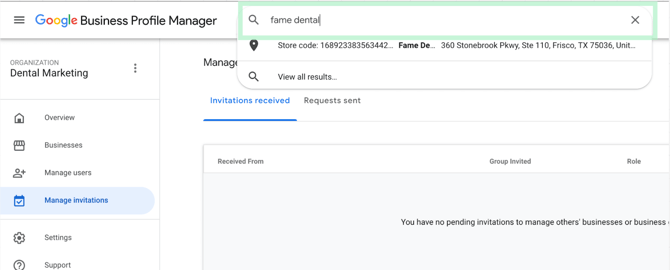
- In the Business Profile Manager, use the search bar to find the practice name you’re working on
- Click into the correct listing to access the full dashboard
Step 3: Access the "Edit Profile" Section'
Go into the Edit Profile section and update the following items: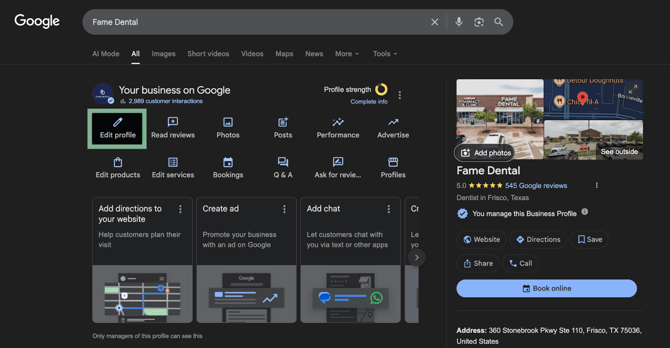
-
Edit Business Name
- Make sure it matches the full practice name exactly
-
Add Business Categories
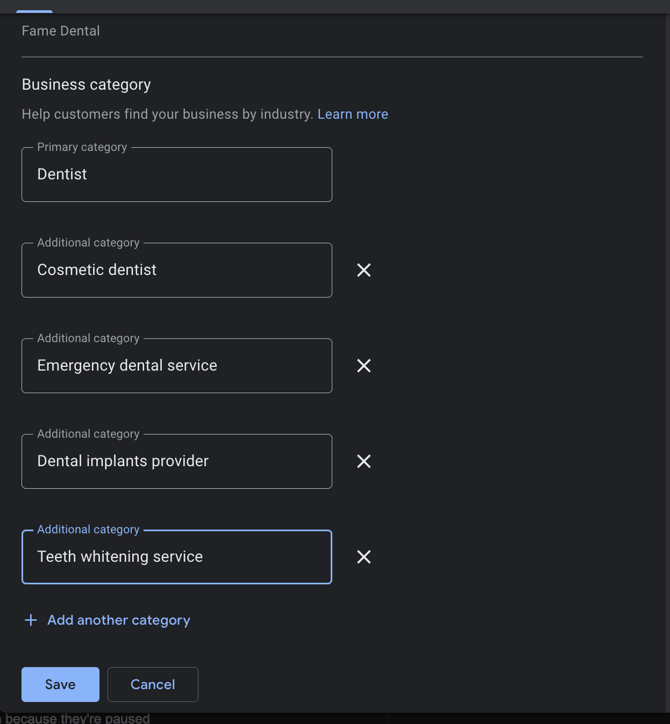
Needed Categories: (add all)
- Dentist
- Cosmetic Dentist
- Dental Clinic
- Emergency Dental Service
- Dental Implants Provider
- Teeth Whitening Service
Maybe Categories (check the client’s website for specialties):
- Pediatric Dentist
- Orthodontist
- Periodontist
- Endodontist
- Prosthodontist
- Oral Surgeon
- Oral and Maxillofacial Surgeon
-
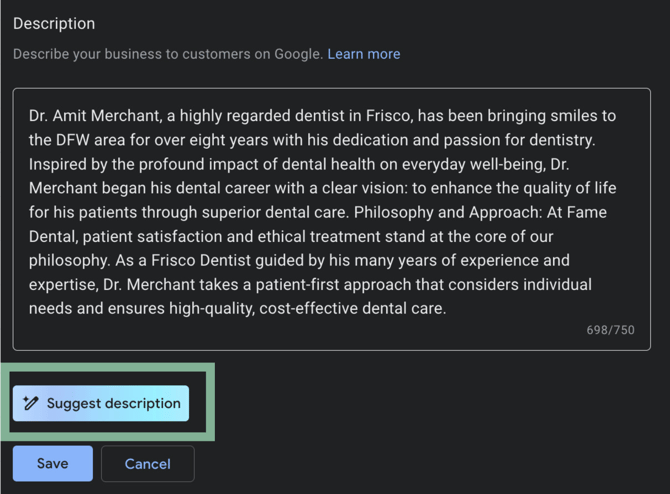
Add Business Description
- Google may auto-generate this, but you can update it to match the brand tone
-
Add Client’s Website
- Use the full URL (e.g., https://www.fame-dental.com)

-
Add Client’s Social Profiles
- Facebook, Instagram, etc., if available
-
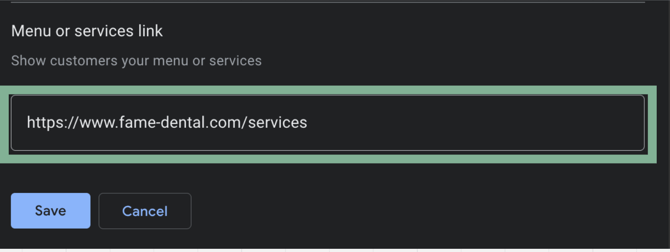
Edit Menu or Services Link
- Link to the services page (e.g., https://www.fame-dental.com/services)
-
Edit Business Location
- Make sure the address is correct and complete
-
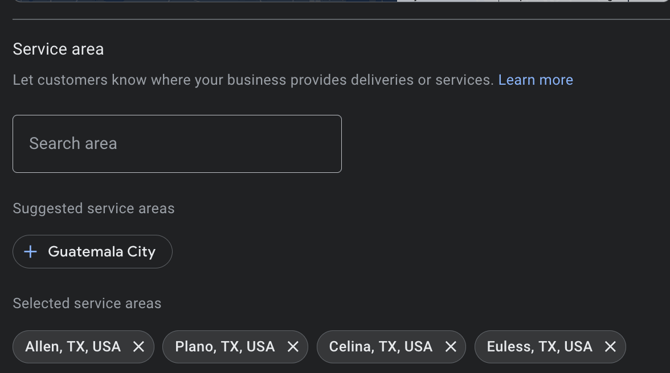
Select Service Area
-
Target the following:- Primary ZIP code (e.g., 75036)
- Main city name (e.g., Frisco, TX)
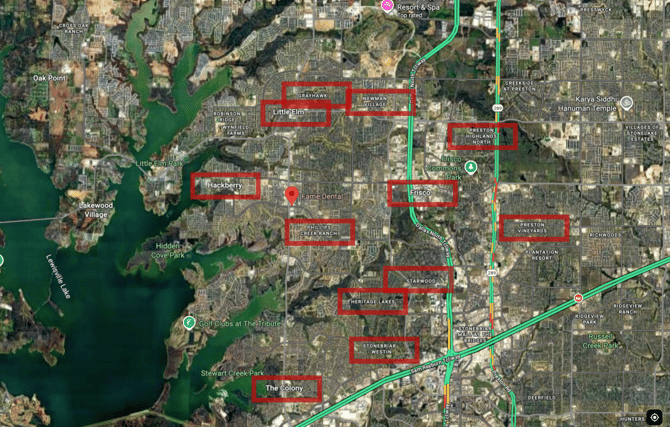
- Specific neighborhoods/subdivisions shown on Google Maps (e.g., Westfalls Village, Phillips Creek Ranch, Christie Ranch, The Trails of Frisco)
-
-
Add Open Hours
- Double-check they match the website and are current
Step 4: Add Services
Use this step to create optimized service listings that help improve SEO and local discovery.
*All prior edits must be approved by Google before services can be added.
- Click “Edit Services”
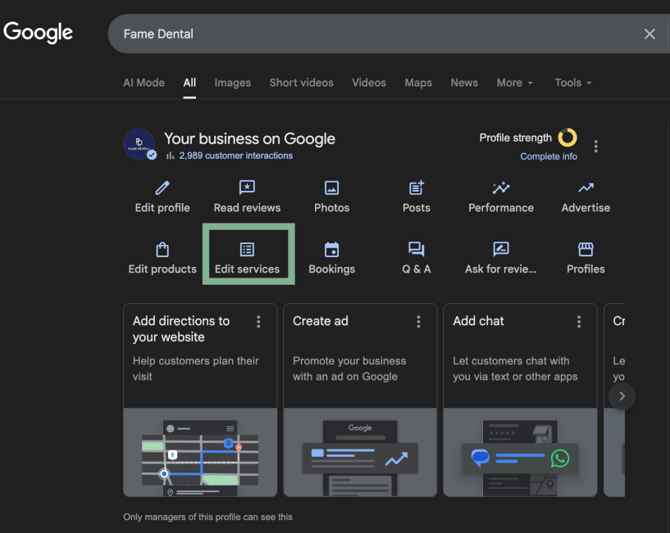
- Locate and download the Client’s Onboarding Form
- Go to Slack and open the #dm-onboarding channel
-
- Use the search bar and type: in:#dm-onboarding [Practice Name]
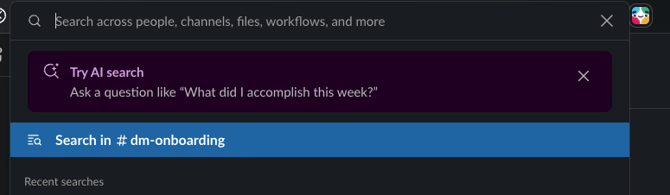
- Use the search bar and type: in:#dm-onboarding [Practice Name]
-
- Example: in:#dm-onboarding Fame Dental
-
- Download the PDF onboarding form attached in the message
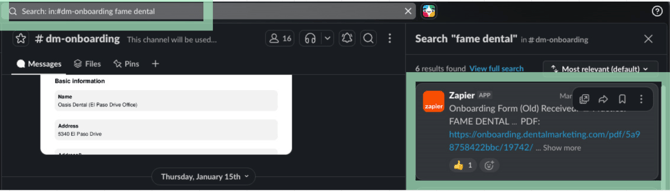
- Download the PDF onboarding form attached in the message
-
Generate Optimized Service Content Using ChatGPT
- Open ChatGPT using flex@donato.ai paid account
- Upload the client’s onboarding PDF
- Use this prompt: https://docs.google.com/document/d/1IwiDprXW6gUeFRfyTxNaJlU0g0KeGmTwoTdgf3DH96I/edit?usp=sharing
-
Add Each Service to GMB
Once you’ve received the service names and descriptions from ChatGPT:
Please note: If you recently changed the business categories, it may take Google 2–3 business days for those changes to update. Initial revisions require approval, which can take up to three days to be approved or denied.
-
Click “Add more services”
- For each Business Category (e.g., Dentist, Cosmetic Dentist, etc.), add the relevant services provided in the ChatGPT output
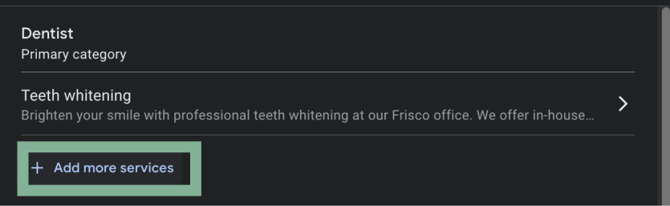
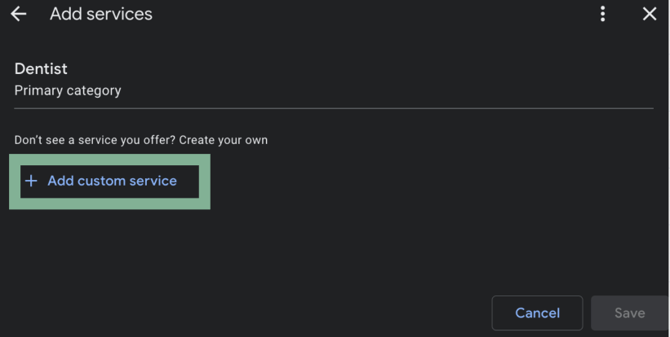
- Click “Add custom service”
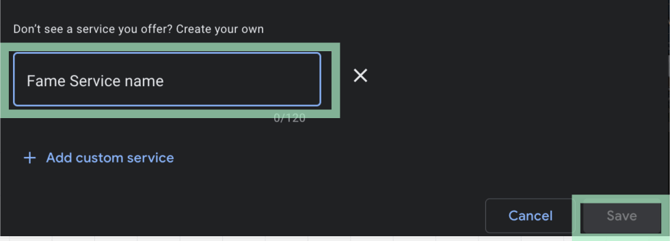
- Enter the Service Title and click Save
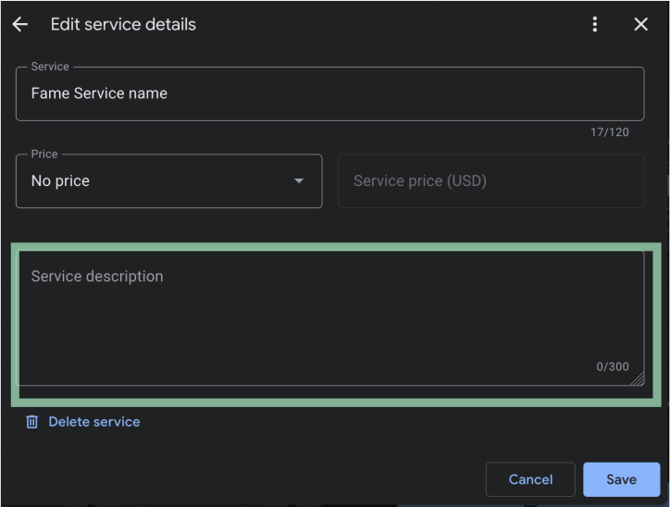
- Click Edit next to the new service
- Add the Service Description and click Save
Repeat this for all services provided in the ChatGPT response, assigning each one under the most relevant GMB category.
Step 5: Add Photos to the Google My Business Profile
Use this step to upload high-quality, optimized photos to improve local SEO and visual appeal on Google.
- Search the Internal Photo Drive
Look for existing photos from client photoshoots.
a. Go to our shared drive: Photoshoot Drive
b. Edit the search filter
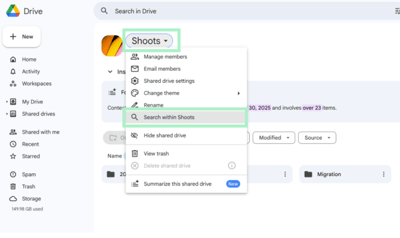
In the left-hand panel, click the dropdown under "Shoots", then select "Search within Shoots"
c. In the search bar, type the practice name (example: "Central Dental")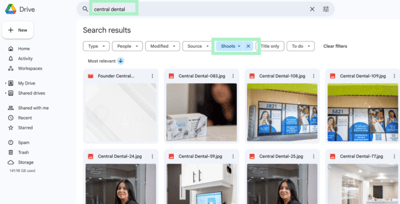
d. Under the filter options, select type: "Folder"
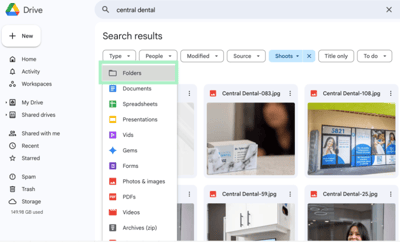
⚠️Note: If the practice folder does not exist, it likely means there are no photos. Post this message in #general on Slack to confirm: "Team I am looking for photos for client (enter client name), I am unable to find it in our shoots drive, if we have photos please let me know. Thank you!"
2. Download 20 Photos
a. Click into the client’s folder
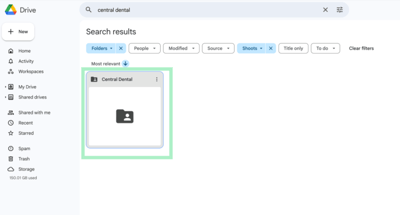
b. Open the folder named "edited" — use only these images
Do NOT use "RAW" photos — they are unedited
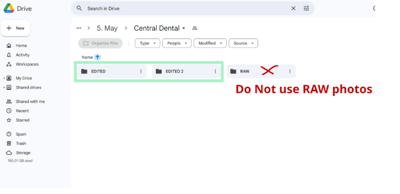
c. Open subfolders titled "Interior" or "Group Shots"
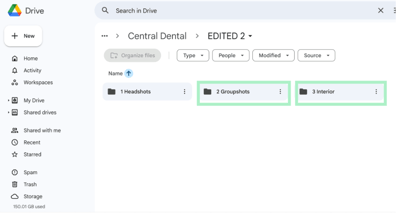
⚠️ Avoid solo headshots — we remove them if a team member leaves.
d. Click the three dots on a photo and choose "Download"
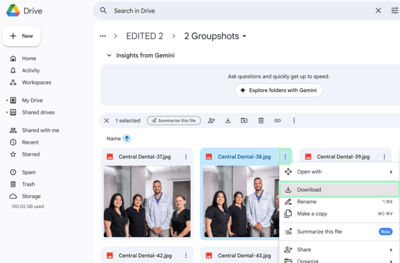 Repeat until you have 20 total.
3. Upload Photos to Google My Business
a. Go to the Dental Marketing GMB org: Google My Business
b. Type the client’s practice name (example: "Central Dental")
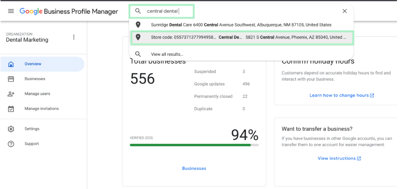
⚠️Caution: Confirm you have the correct Google My Business page by checking the address — some dental practices have similar names.
c. Click "Photos"
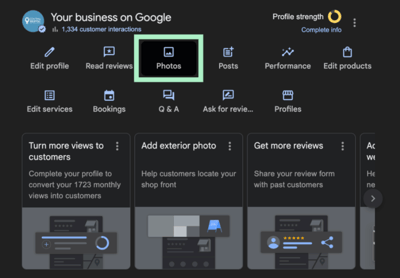
d. Click "Add Photos"
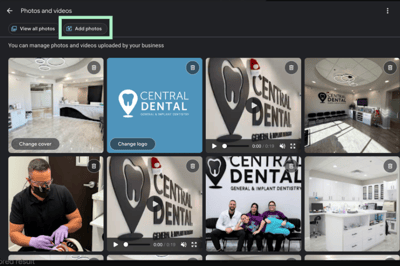
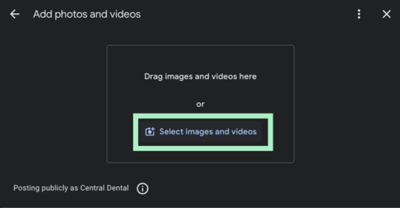
e. Click "Select Images and Photos" and upload the 20 photos