![DentalMarketing-Logo2-White copy-1.png]](https://grow.dentalmarketing.com/hs-fs/hubfs/DentalMarketing-Logo2-White%20copy-1.png?height=40&name=DentalMarketing-Logo2-White%20copy-1.png)
Number: 1
Date: November 10, 2023
Creator: Ideth Orantes
Trigger: Post Launch Compliance
We understand that managing your client's Google My Business (GMB) listings can be a critical aspect of your role, so we created this comprehensive guide, where we’ll walk you through the steps to grant access to Dental Marketing, ensuring seamless management and optimization of your clients' GMB profiles.
Step 1: Accessing the GMB Back-End
To begin this journey, you'll need to access the back end of the GMB listing using team@dentalmarketing.com. It's the gateway to granting Dental Marketing the access necessary for managing and enhancing the listing effectively. You can access it here: https://www.google.com/business/ by logging into your Google account.
Step 2: Entering Dental Marketing's Organization ID
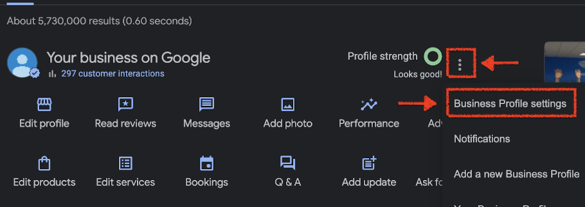
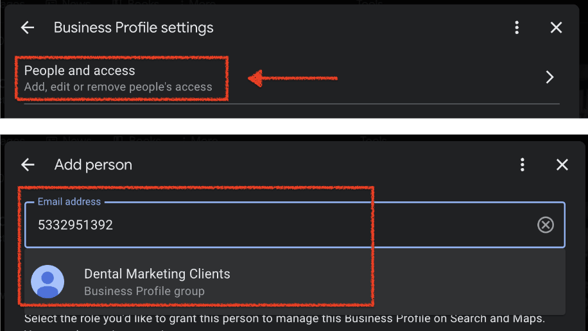
Click on the 3 dots in the top right corner of your Google Business Profile Manager and click on the “Business Profile Settings.” In the "People and Access" section, you'll be prompted to enter our organization ID: 5332951392 in the email address field. Verifying that the organization ID displayed corresponds to 'Dental Marketing.' This step ensures that the access request is directed to the right entity.
Step 3: Choosing the Access Level
Depending on your specific client's needs, you can decide whether to grant 'Manager' or 'Owner' access to Dental Marketing. Notably, multiple owners can be on the listing, facilitating seamless collaboration.
Step 4: Sending the GMB Invite
With the access level and organization ID confirmed, send the GMB invite. Dental Marketing will receive the invitation and gain access to the GMB listing.
Step 5: Tracking Progress
We've created this spreadsheet specifically for your convenience to keep track of completed tasks. This spreadsheet includes a checklist for all Digital + Combined Clients managed by CSMs. Simply check the box when all the steps are complete, and it even includes a progress bar to monitor overall progress. This tool is designed to simplify your workload and ensure everything runs smoothly.
In conclusion, by following these steps and utilizing the provided resources, you can efficiently grant access to Dental Marketing for GMB listings. This collaborative approach streamlines the process, empowers you as a Client Success Manager, and ultimately benefits your clients by enhancing their online visibility.