![DentalMarketing-Logo2-White copy-1.png]](https://grow.dentalmarketing.com/hs-fs/hubfs/DentalMarketing-Logo2-White%20copy-1.png?height=40&name=DentalMarketing-Logo2-White%20copy-1.png)
SA Responsibilities:
-
Create a task for the Paid Search team to request the Google Tag Manager container ID code for the practice's website.
- Once the Paid Search team completes the task, provide the client with the Google Tag Manager container ID to share with their Modento POC.
- Modento will then configure the back-end to fire information to the Google Tag Manager account.
-
Create a task for the Paid Search team to set up conversion tracking for Modento form submissions once everything is ready.
Paid Search Team Responsibilities:
- Verify GTM Container is Linked to Modento
- Open the practice's website and use Google Tag Manager Assistant to verify that the GTM container ID is added to the Modento Booking widget
- Note: You may need to "enable" debugging for Modento domain first in order to see the events in GTM
- If the container is linked, you will see events appear in the left-side of the Debugger as you click through the booking widget
- Open the practice's website and use Google Tag Manager Assistant to verify that the GTM container ID is added to the Modento Booking widget
-
Set Up GTM/Reach Out to GTM Freelancer
- Reach out to Ravi at mediasearchsolution@gmail.com to assist with setting up the Google Ads conversion and creating the tag in GTM
- Before contacting him:
- Reach out to Ravi at mediasearchsolution@gmail.com to assist with setting up the Google Ads conversion and creating the tag in GTM
-
-
-
- Grant him Standard access to the Google Ads account
- Grant him Admin access to the GTM container
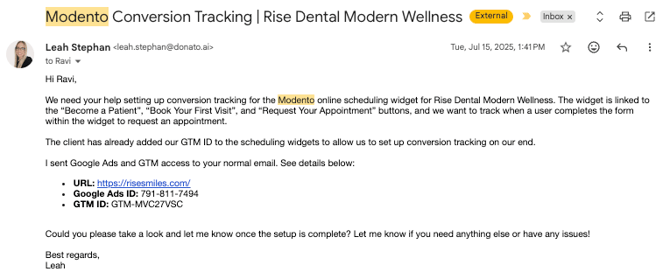
- Include the following details in your email to him:
- A clear request for his assistance in setting up conversion tracking for the Modento booking widget
- Confirmation that the GTM ID has already been implemented in the widget
- URL
- Direction of where the widget is located/which button on the site triggers it
- Google Ads account ID
- GTM container ID
-
-
-
- Notify the SA that we've granted our GTM specialist temporary access to the Google Ads account to assist with advanced conversion tracking, and that we will remove his access once setup is complete
- Once Ravi confirms that it has been set up, proceed to the next steps
- Review/Adjust in GTM
- Review and rename the tag to 'Google Ads - Conversion - Modento Scheduled Appointment'
- Copy/paste the corresponding conversion ID and label from Google Ads to the tag, if needed
- Create a GA4 tag called 'GA4 - Event - Modento Scheduled Appointment' that uses the same trigger
- Set the event name to 'Modento Scheduled Appointment'
- Publish container
- Review and rename the tag to 'Google Ads - Conversion - Modento Scheduled Appointment'
-
Review/Adjust in Google Ads
- Review and rename the conversion to 'Google Ads - Modento Scheduled Appointment'
- Set goal category to ‘Book Appointment’
- Set to $100 value
- Set count to 'One'
- Set the attribution model to 'Last Click'
- Enabled 'Enhanced Conversions'
- Toggle off 'Enhanced CPC’
- Review and rename the conversion to 'Google Ads - Modento Scheduled Appointment'
-
- Click 'Save & Continue'
- Click into the 'Google Ads - Booking Widget Click ' conversion and switch to ‘secondary’ action to avoid double-counting
- Make sure 'Google Ads - Modento Scheduled Appointment' conversion is included in account-level conversions
- Test + Update GTM Matrix
- Add all new tags to the practice's existing GTM Matrix
- Test all new tags in the GTM Debugger to ensure they are firing properly upon form submission within the booking widget
- Note: Use your real phone number because you’ll get a code to confirm and complete the test
- If all tags fire, mark them as "Passed" in the GTM Matrix
- If there are any issues with any tags, QA to try to resolve the issue or reach out to Ravi for assistance
- Final Steps
- Add a note to the Google Ads account indicating that:
- Modento Scheduled Appointment conversion has been added as part of the advanced conversion tracking process
-
Booking Widget Click has been switched to a secondary conversion
- Update the date in Optmyzr accordingly
- Add comment to the task with your notes and tag the SA
- Mark task as completed
- Remove Ravi's access from from Google Ads and GTM
- Add a note to the Google Ads account indicating that:
- After 24 Hours
- Toggle on the new event in GA