![DentalMarketing-Logo2-White copy-1.png]](https://grow.dentalmarketing.com/hs-fs/hubfs/DentalMarketing-Logo2-White%20copy-1.png?height=40&name=DentalMarketing-Logo2-White%20copy-1.png)
Explanation: If a client selects “Individual” as the Account Type for their Payment Profile when creating their Google Ads account, then they cannot send us payment user access and we will not be able to update CC information on their behalf. To resolve this, we need to connect with Google Support to request them to create a new Payment Profile so we can ensure the Account Type is set to “Organization” instead, which allows for multiple payment users.
Phase 1:
- Request CC information from the client as you will need to re-add this information when the payment profile is updated
- Request for the client to add “team@dentalmarketing.com” as a User with Admin access on the Google Ads account
- Once this invite is sent, you’ll need to accept the invite under the team@ email account
Phase 2:
- Once you receive the CC information and admin access, email or start a chat with Google Support and let them know that you need to create a new Payment Profile for the Google Ads account
- Google Support will send an email with the information they need to create a new payment profile
- Email Google Support back with the requested information:
- Enter the correct Ad Account ID
- Enter “ASAP” as the date to update the payment settings
- Enter the proper county
- Enter “Organization” as the VAT status
- You can leave VAT number blank
-
- Enter the practice name as the company name and contact name
- Enter the practice address as the address
- Enter the practice zip code as the postal code
- Enter the proper city
- Enter the proper state/province
-
- Enter “Dental Marketing” as the primary contact name
- Enter “855-980-0091” as the phone number
- Enter “team@dentalmarketing.com as the email address
- Enter "Automatic" as the new payments method
-
- For the name and email of the current billing contact who approves this change, enter the name and email address of the current payment user on the existing payment profile
- Then, notify the SA/OB specialist to let the client know to be on the lookout for an email from Google Support to approve the payment profile changes so they can approve those changes ASAP - the email from Google Support that the client will receive should look similar to this:
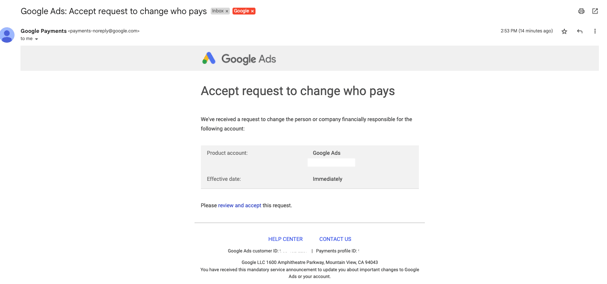
- Then, notify the SA/OB specialist to let the client know to be on the lookout for an email from Google Support to approve the payment profile changes so they can approve those changes ASAP - the email from Google Support that the client will receive should look similar to this:
- For the name and email of the current billing contact who approves this change, enter the name and email address of the current payment user on the existing payment profile
- Google will make the changes to the payment profile on their side and in order to finalize their changes, 2 email requests need to be accepted:
- The client (i.e. previous payment user email) will receive an email confirming the changes being made to their payment profile and they need to approve these changes
-
- Team@dentalmarketing.com will also receive an email to accept access to the new payment profile and that needs to be accepted as well
- Once both requests have been accepted, the payment profile will be updated on the account, then you need to accept the Terms & Conditions (must be accepted under team@ or another admin user) and re-add the CC information as provided by the client to begin running again
- Note: Please be sure to check the previous payment profile for any outstanding balance and pay that off to avoid any account suspension on the account
- Re-add the client email that was previously listed as a payment user to the new payment profile, granting Admin access, enabling it to receive all payment emails, and marking it as the primary contact