![DentalMarketing-Logo2-White copy-1.png]](https://grow.dentalmarketing.com/hs-fs/hubfs/DentalMarketing-Logo2-White%20copy-1.png?height=40&name=DentalMarketing-Logo2-White%20copy-1.png)
Overview
The Budget Pacing Agent is an AI-powered agent that helps keep Google Ads accounts on pace with their monthly budgets.
Daily 6:00 AM Run
- Runs once each morning at 6:00 AM.
- Compares MTD spend (including active and paused campaigns) to the monthly budget.
- Updates daily budgets for active campaigns to keep the account on pace.
- Processes budget changes, approvals, reporting, and other account updates.
Hourly Budget Checks
- Runs every hour.
- Checks whether an account has reached its monthly budget.
- Automatically pauses campaigns to prevent overspend.
- Does not process budget changes, approvals, or reporting.
Monthly Reset
- Campaigns paused after reaching their monthly budget are automatically re-enabled on the 1st of the following month.
How To Access
Go to https://seo-content-portal-seven.vercel.app/ and select the 'G Ads Pacing' tab.
How It Works
The agent operates in one of two modes:
Account-Level Mode (Default)
By default, all accounts use Account-Level Mode.
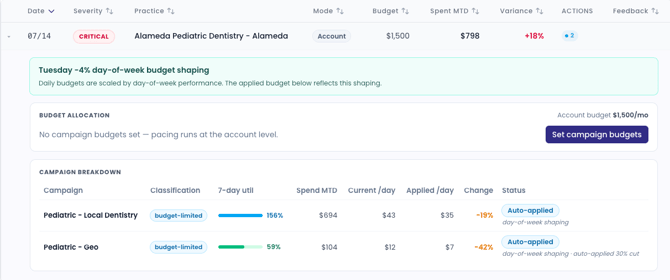
In this mode, the agent automatically distributes budget across active campaigns based on the account's existing spending patterns while keeping the overall account on pace for its monthly budget.
No campaign-specific budget targets are required.
Example:
Campaign-Level Mode
Campaign-Level Mode is used when you want individual campaigns to spend a specific portion of the monthly budget.
Each campaign is assigned a monthly dollar target, and the agent adjusts daily budgets throughout the month to help each campaign reach its assigned target.
The agent:
- Only adjusts daily budgets.
- Does not optimize toward better-performing campaigns.
- Does not change bids or campaign targets.
- Simply works to ensure each campaign reaches its assigned monthly budget.
Any campaign allocation changes made today will be applied during the agent's next scheduled run at 6:00 AM the following morning.
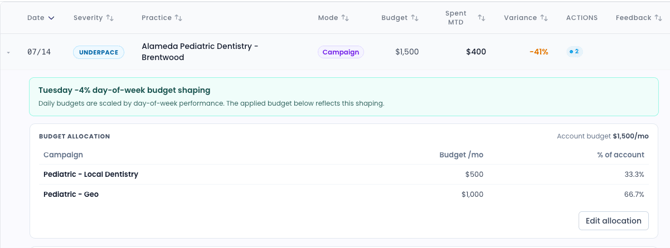
When campaign allocations are configured, the agent displays both the assigned monthly budget and percentage allocation for each campaign.
Example:
Built-In Guardrails
The agent includes several safeguards to prevent unexpected budget fluctuations:
- Daily budget changes are limited so budgets don't change dramatically overnight.
- The agent stops adjusting campaign budgets if the combined campaign allocations exceed the overall account budget.
Navigation
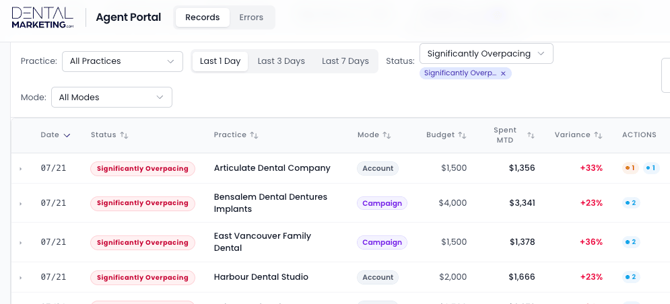
Use the Practice filter to search for a specific client.

Use the Mode filter to display either:
- Account-Level Mode
- Campaign-Level Mode

Use the Status filter to view accounts with a specific pacing status.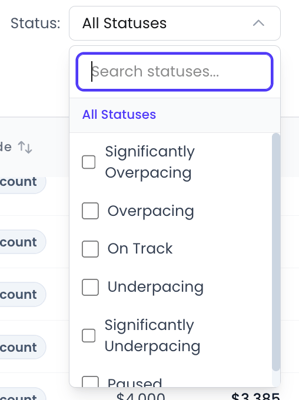
Toggle to Needs Review to view all accounts that require approval for their daily budget changes. 
Select Export CSV to export all information. 
Statuses
Each account receives one of the following pacing statuses:
- On Track - Within 10% of the target
- Underpacing - More than 10% under target
- Significantly Underpacing - More than 20% under target
- Overpacing - More than 10% over target
- Significantly Overpacing - More than 20% over target
You can filter the agent by pacing status to quickly review accounts that require attention.
Adding New Accounts to the Agent
An account will only appear in the Budget Pacing Agent if all of the following conditions are met:
- Google Ads ID exists in (must be formatted as XXX-XXX-XXXX).
- Google Ads Budget has been entered and it is greater than $0.
- Customer Type is Active or Trial.
- Google Ads Pacing Agent is set to Yes.
- The Google Ads account contains at least one active campaign.
If an account is missing from the agent, verify that all of the above requirements have been met.
Adding New Campaigns
Whenever a new campaign is added to an account:
- Wait until the agent runs the following morning.
- Review the account.
- If the account uses Campaign-Level Mode, update the campaign allocations as needed to include the new campaign.
Pausing Campaigns
Whenever a campaign is paused in Google Ads:
- Wait until the agent runs at 6:00 AM the following morning.
- Review the account.
- Update the campaign allocations as needed so the remaining active campaigns total 100% of the monthly budget.
Note: The paused campaign will remain visible in the agent until the next 6:00 AM run. After that, it will be removed from the campaign view, but its MTD spend will still count toward the account's overall MTD spend.
Approving Daily Budget Changes
Some larger daily budget adjustments require manual approval before they are applied.
If approval is required:
- Locate the account with the Needs Review flag.
- Expand the account row to review.
- Review the recommended budget changes under Applied/Day.
- Scroll to Review & Feedback.
- Select Approve (or Reject if appropriate).
- Enter your name in the Reviewed By field.
- Click Submit Feedback.
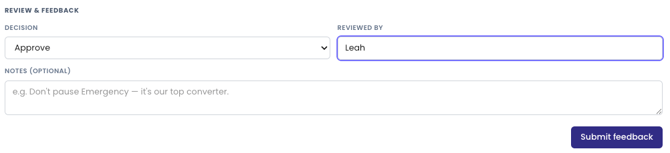
If no action is taken, the recommendation is ignored and no budget changes are applied.
Error Messages
If an error is encountered for an account on Campaign-Level Mode, an error message will appear in the campaign view. These errors may cause the account to temporarily fall back to Account-Level Mode until the issue is resolved.
-
"blocked_by_sibling"
-
What it means: This campaign is not the problem. Another campaign in the same account has an issue preventing Campaign-Level Mode from working, so the entire account falls back to Account-Level Mode.
-
How to resolve it:
-
Remove the existing campaign allocations.
-
Re-enter the campaign allocations so they total 100% of the monthly budget.
-
-
-
-
Note: This error can sometimes occur after a campaign is added, paused, or when the monthly budget changes.
-
- "shared_budget"
-
- What it means: The campaign is using a Google Ads shared budget, so the Budget Pacing Agent cannot manage its budget individually.
- How to resolve it:
- Remove the shared budget in Google Ads.
- Assign the campaign its own individual daily budget.
- Wait for the next 6:00 AM agent run. The error should clear automatically.
- "drift"
-
- What it means: The campaign is configured in the Budget Pacing Agent but is no longer active in Google Ads because it has been paused or removed.
- How to resolve it:
- If the campaign was intentionally paused or removed, no action is needed. It will disappear from the campaign view after the next 6:00 AM run.
- Update the remaining campaign allocations as needed so they total 100% of the monthly budget.
- If the campaign should still be active, verify that it has not been paused or removed in Google Ads.
- "sum_overshoot"
-
- What it means: The combined campaign allocations are greater than the account's monthly budget.
- How to resolve it:
- Review the campaign allocations.
- Adjust them so they total exactly 100% of the monthly budget.
- The error will clear after the next 6:00 AM run.
Reporting Issues
- If you identify a bug or unexpected behavior within the Budget Pacing Agent, notify your Team Lead and they will report the issue directly to Mark Inge, who maintains the Budget Pacing Agent.