![DentalMarketing-Logo2-White copy-1.png]](https://grow.dentalmarketing.com/hs-fs/hubfs/DentalMarketing-Logo2-White%20copy-1.png?height=40&name=DentalMarketing-Logo2-White%20copy-1.png)
Required Access & Platforms
- HubSpot
- LastPass (For login & access)
- AgencyAnalytics
- Webflow
- Typeforms
- Google Tag Manager
- Google Search Console
Post Launch Compliance Overview
- Step 1: QA the GTM
- Step 2: QA Email for Leads
- Step 3: QA Webflow Project
- Step 4: QA TypeForms
- Step 5: QA Booking Forms
- Step 6: Run the URL in AgencyAnalytics
- Step 7: Add to Google Search Console* (Only Digital LPs, Full Sites, and Home LPs)
- Step 8: Export Report
Step 1: QA the GTM
- Login into Google Tag Manager (https://tagmanager.google.com)
- Search for the account

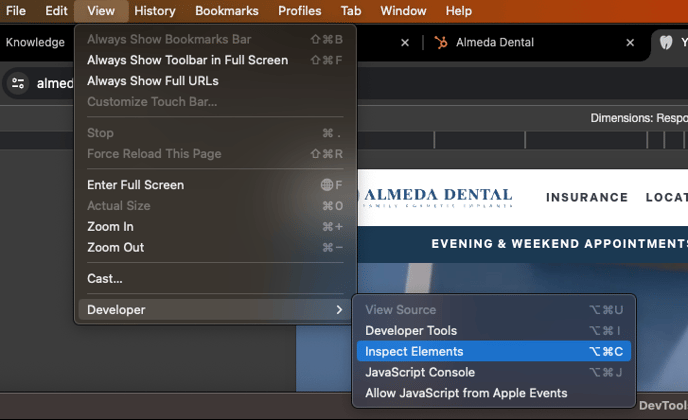
- Open the website URL, and open the "Inspect Elements" Window
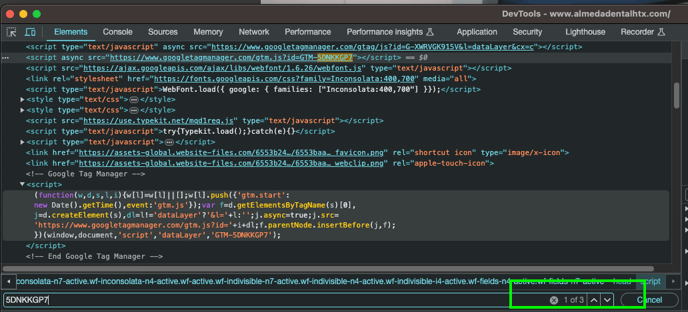
- Search for the Container ID Number, it should be listed 3 times
Corrective Actions
- If a GTM was not created:
- Create the task inside the ticket for the creation and assign to the Paid Search Marketing Lead who will reassign properly.
- Task Title: "POST LAUNCH Edit - Create GTM"
- Task Due Date: 1 day
- Priority: High
- Description: Create GTM for URL: "URL"
- Task Title: "POST LAUNCH Edit - Create GTM"
- Create the task inside the ticket for the creation and assign to the Creative Lead who will reassign properly.
- Task Title: "POST LAUNCH Edit - Add GTM"
- Task Due Date: 2 days
- Priority: High
- Description: Add GTM for URL: "URL"
- Task Title: "POST LAUNCH Edit - Add GTM"
- Create the task inside the ticket for the creation and assign to the Paid Search Marketing Lead who will reassign properly.
- If GTM was not included or wrong:
- Create the task inside the ticket for the creation and assign to the Creative Lead who will reassign properly.
- Task Title: "POST LAUNCH Edit - Update GTM"
- Task Due Date: 1 days
- Priority: High
- Description: Update GTM [INCLUDE CORRECT SCRIPT HERE]
- Task Title: "POST LAUNCH Edit - Update GTM"
- Create the task inside the ticket for the creation and assign to the Creative Lead who will reassign properly.
Step 2: QA Email For Leads
- Login into Webflow
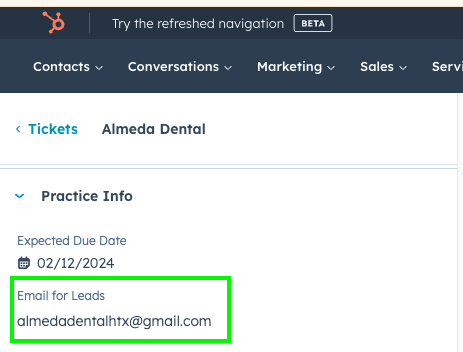
- Confirm the email is the same provided in the ticket
Hubspot
Webflow 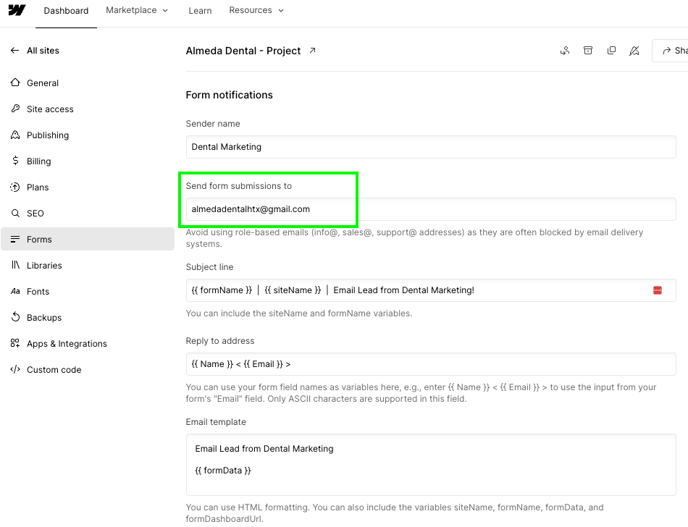
Corrective Actions
- If the email lead was not provided neither in the ticket, tag the OB Specialist/CSM in the Slack channel requesting the email.
- Create the task inside the ticket for the creation and assign to the Compliance Lead who will reassign properly.
- Task Title: "POST LAUNCH Edit - Request Email for Leads"
- Task Due Date: 1 day
- Priority: High
- Description: Request the email for leads. Once the email is provided to you, create a ticket in the Support Pipeline requesting to update the email for leads in the clients website forms (including Typeforms).
- Task Title: "POST LAUNCH Edit - Request Email for Leads"
- Create the task inside the ticket for the creation and assign to the Compliance Lead who will reassign properly.
- Create the task inside the ticket for the creation and assign to the Creative Lead who will reassign properly.
- Task Title: "POST LAUNCH Edit - Add Email for Leads"
- Task Due Date: 1 day
- Priority: High
- Description: Add the email for leads to the web project. Email: [PROVIDE EMAIL]
Step 3: QA Webflow Project Settings
SEO
- Disable Webflow subdomain indexing
- Auto-generate sitemap *(Full Sites Only)
- Set Global canonical tag URL *(Full Sites Only)
Step 4: QA TypeForms
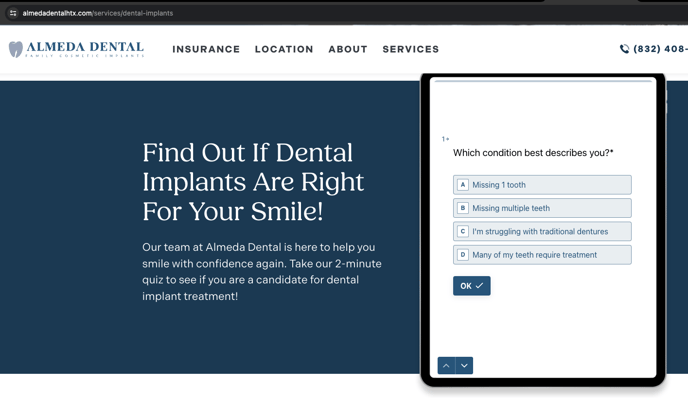
- All projects should include a Typeform for Dental Implants (only exception will be if the practice doesn't offer Dental Implants service at all)
- If the practice is focused in cosmetic services, we should include an additional Cosmetic/Smile Makeover Typeform (For a total of two Typeforms). You should be able to find this one in the Teeth Whitening or Veneers Service.
- If the practice is focused in ortho services, we should include an additional Ortho Typeform (For a total of two Typeforms). You should be able to find this one in the Teeth Whitening or Veneers Service.
To find out the focused services, review the OB Form.
- Confirm Focused Services
- Login into Typeform
- Search for the practice name
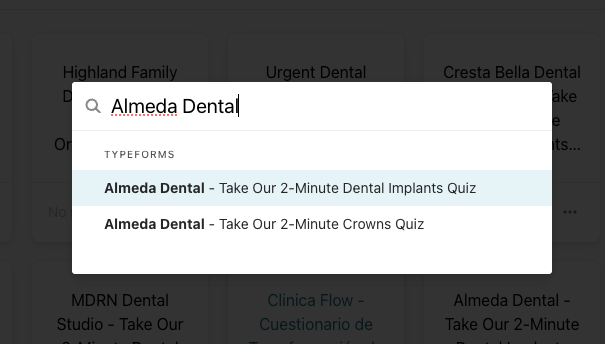
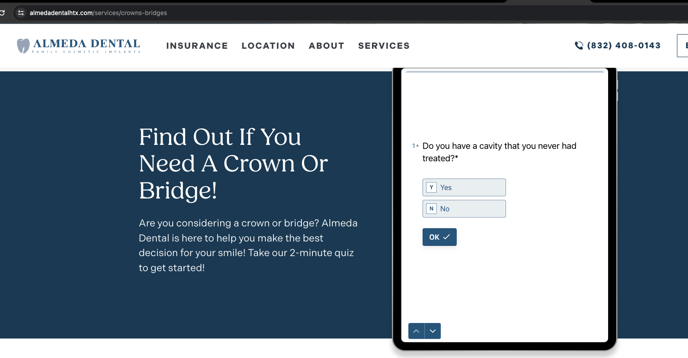
- Confirm the listed forms are in the pages and match the colors of the website.
Corrective Actions
- If a form was not included:
-
- Create the task inside the ticket for the creation and assign to the Compliance Lead who will reassign properly.
- Task Title: "POST LAUNCH Edit - Create Typeform: "SERVICE" "
- Task Due Date: 1 day
- Priority: High
- Description: Create Typeform & add script as a comment in the service page via Pastel link.
- Task Title: "POST LAUNCH Edit - Create Typeform: "SERVICE" "
- Create the task inside the ticket for the copy creation and assign to the Compliance Lead who will reassign properly.
- Task Title: "POST LAUNCH Edit - Create Copy for Typeform Section: "SERVICE" "
- Task Due Date: 1 day
- Priority: High
- Description: Create Copy for Typeform Section & add text as a comment in the service page via Pastel link.
- Create the task for the implementation and assign to the Creative Lead who will reassign properly.
- Task Title: "POST LAUNCH Edit - Add Typeform Section: "SERVICE" "
- Task Due Date: 2 days
- Priority: High
- Description: Create Typeform Section & add to the website. Find the script & copy in the pastel link.
- Create the task inside the ticket for the creation and assign to the Compliance Lead who will reassign properly.
-
Step 5: QA Booking Forms
- Go to the website/landing page URL
Scenario 1: Practice has a Booking System
If the practice has a booking system, we will only need to QA the following Forms:
- Do You Take My Insurance?
- Reputation Management "How Did We Do"
Scenario 2: Practice doesn't have a Booking System
If the practice has a booking system, we will only need to QA the following Forms:
- Booking Form
- Do You Take My Insurance?
- Reputation Management "How Did We Do"
Steps:
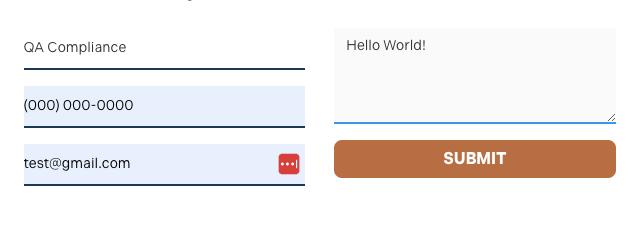
- Submit an entry on each form.
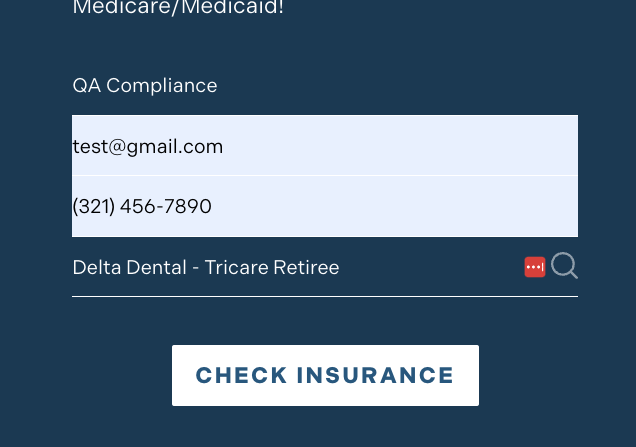
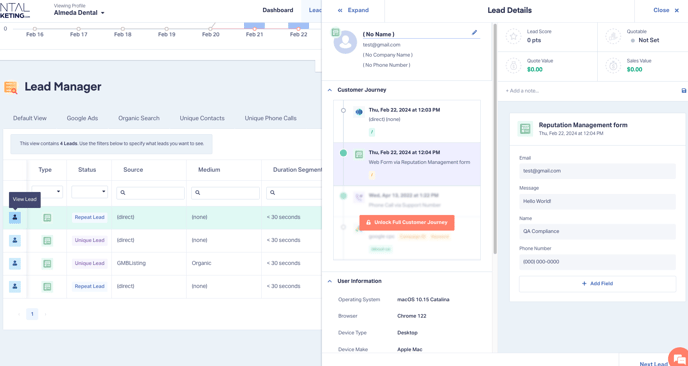
- Login into WhatConverts, and confirm the leads are in the "Leads Report"
Corrective Actions
Step 6: Run the URL in AgencyAnalytics
- Login into AgencyAnalytics (https://report.dentalmarketing.com/campaigns) using flex@donato.ai.
- Access the "Creative Team - Internal" Project
- Go to "Settings" and paste the site's URL
- Go to "Overview"
- Click on "Audit Score"
- Click on "Perform Audit"
- Click on "Start Crawl"
Common Warnings/Errors & Solutions
4XX Errors
 |
- Click on "4XX Errors" to view a detailed description of the problem.
Corrective Actions
If Webflow is not part of your skillset, the create a task for the Creative Lead to reassign - Provide details/screenshot on what needs to be addressed.
If it is in your skill set, watch this video:
- Draft template pages.
- Relink 404 links
Duplicate Titles
 |
- Click on "Duplicate Titles" to view a detailed description of the problem.
Corrective Actions
Duplicate Descriptions
 |
- Click on "Duplicate Descriptions" to view a detailed description of the problem.
Corrective Actions
Page Contains Lorem Ipsum Content
 |
- Click on "Page Contains Lorem Ipsum Content" to view a detailed description of the problem.
Corrective Actions
List of Warnings that can be dismissed
- Low Readability Rate
- Low Word Count
- Low Content Rate
- Frames Used
- Page does not have internal links pointing to it
- SEO Friendly URL
- Slow Page Load
- Page contains render blocking resources
- High Waiting Time
- Low Character Count
Step 7: Add to Google Search Console*
*(Only Full Sites)
Step 8: Export Report