![DentalMarketing-Logo2-White copy-1.png]](https://grow.dentalmarketing.com/hs-fs/hubfs/DentalMarketing-Logo2-White%20copy-1.png?height=40&name=DentalMarketing-Logo2-White%20copy-1.png)
- Stop campaigns on Google Ads
-
- Open account > 'Campaigns' > Select all active campaigns > 'Edit' > 'Pause'
- Go to Account Settings > Account Name > Add ‘ZZZ -’ to the account name > Save
- Go to Billing > Summary > Check for an outstanding balance > Pay off any balance with CC on file, if applicable (make a note of what the outstanding balance was to later submit on Asana)
- If we payoff balance > Billing > Settings > Payment Users > Add client's name and email (get from the company profile in HubSpot) > Change email preferences to ‘receive all payment emails’ > Change to primary contact > Send invite (make a note that "billing invite was sent to the client's email and they have 14 days to accept" to submit later in task)
-
- Go to Admin > Preferences > Under Account Status, select "Cancel my account"
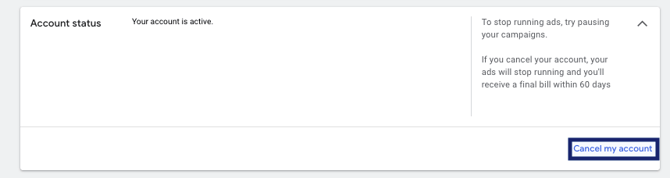
- Note: We should be able to complete this step as long as we have Admin access to the account, but if you're unable to complete this step then make a note and add to the task to keep a historical record
- Go to Admin > Preferences > Under Account Status, select "Cancel my account"
- Google Analytics + GTM
- In Google Analytics using email address team@dentalmarketing.com > Search for client > Find both G4 and UA accounts (if applicable)
- G4: Admin > Property Settings > Property details > change property name: ‘ZZZ - Client Name’ > Save
- In Google Analytics using email address team@dentalmarketing.com > Search for client > Find both G4 and UA accounts (if applicable)
-
- In GTM > Search for client > Click the 3 dots on the right-side > Account Settings > Account Settings > Click the 3 dots on the right-side > Delete
- Note: Check under Account Settings > User Management first to see if the client has access to the GTM container. If they do, simply remove our access to it and include in your notes on the task.
- In the GTM Matrices folder in the Google Drive, find the client's matrix and move it to the 'Archive' folder
- In GTM > Search for client > Click the 3 dots on the right-side > Account Settings > Account Settings > Click the 3 dots on the right-side > Delete
- Screenshot recent performance
- In Google Ads, take a screenshot of the last 30 days of performance for historical record and add screenshot to the task
- Remove from Budget Pacing Agent
-
In the HS Company Dashboard, remove 'Yes' under the Google Ads Pacing Agent property field for the account
-
- Remove from Negative Keyword Agent
- In the HS Company Dashboard, remove 'Yes' under the Google Negative Keywords property field for the account
- Remove from other platforms
- Check if the client is running Facebook Ads (to review this go to Facebook Ads > Business Settings > Ad accounts > Search for the practice's name)
- If the client is running Facebook Ads:
- Go to Facebook Ads > Business Settings > Brand Safety > Domains > Find domain and click ‘Remove’
- Under Business Settings, go to Accounts > Ad Accounts > Click account and click the 3 dots on the right-side > Edit > Add ‘ZZZ -’ in the beginning of the ad account name and save changes
- Click the 3 dots > 'Close Account'
- If the client is running Facebook Ads:
- Check if the client is running Microsoft Ads (to review this go to Microsoft Ads > login using team@dentalmarketing.com > Search for client's name)
- If the client is running Microsoft Ads:
- Pause all campaigns if found and edit the account name to include ‘ZZZ -’
- If the client is running Microsoft Ads:
- Check if the client is running Facebook Ads (to review this go to Facebook Ads > Business Settings > Ad accounts > Search for the practice's name)
- Remove our Google Ads access
- If the client email is listed as an Admin at the user-level, we will simply unlink the account from our MCC
- Note: Make a note of the client email that has Admin access, so you can include in your comment on the task
- At the MCC-level, go to 'Accounts' > 'Sub-Account Settings' > Search for the account name > 'Edit' > 'Unlink'
- If the client email is not listed as an Admin at the user-level, we will transfer the account to the ZZZ Dental Marketing MCC
-
- Log into Google Ads under team@dentalmarketing.com > Search for client
- On another tab > Open the ‘ZZZ Dental Marketing Clients’ MCC account > On the left-side menu click 'Settings' > Click 'Sub-Account Settings' > Click the blue '+' > Click 'Link existing account' > Copy the account ID for the client account > Paste on ZZZ Dental Marketing Clients tab and send request
- Back on the Dental Marketing tab > go to 'Tools & Settings' > Access and Security > Managers > Accept request > Change owner to ‘no’ on ‘Dental Marketing Clients’ MCC > Click on ‘ZZZ Clients’ in the pop up window > Click ‘Change Owner’
- Go back to ZZZ Dental Marketing Clients tab > Refresh page to confirm if client transferred > Search for client and open account > Tools & Settings > Access and Security > Managers > Check if the ZZZ Dental Marketing Clients MCC has ’yes’ as owner > Click ‘remove access’ for the Dental Marketing Clients MCC > Click ‘Unlink’
-
- If the client email is listed as an Admin at the user-level, we will simply unlink the account from our MCC
- Remove Google Ads phone number on GMB
- If we have access to a GMB listing for the practice, click to open it, then click the 3 dots on right > 'Business Profile Settings' > 'Advanced Settings' > Scroll down to the 'Google Ads Phone Number' and delete the number listed there > Save changes
- Update Trade Desk Audit Pipeline
- In HubSpot, under CRM > Tickets > Select the 'Internal - Trade Desk Audit' pipeline
- Search for the account and move any open ticket to the 'Closed' status
- For "Is the client getting a paid search audit next month?", select No
- Leave the audit date unchanged
- Open the closed ticket and delete the Routine Audit task within it
- Add to cancellation tracker + mark task complete
- Add practice to the Cancellation Tracker and ask the SA for the reason for the cancellation
- Confirm in the task that all marketing has been stopped for the client and add any notes (i.e. outstanding balance amount, payment user invite, who has Admin access, transferred to ZZZ Clients MCC/unlinked from MCC, etc.), @ the SA, then mark the task as ‘Complete’