![DentalMarketing-Logo2-White copy-1.png]](https://grow.dentalmarketing.com/hs-fs/hubfs/DentalMarketing-Logo2-White%20copy-1.png?height=40&name=DentalMarketing-Logo2-White%20copy-1.png)
Pipelines
- Onboarding - PAP (Patient Aquisition Plan)
- Onboarding - Startup
- Onboarding - Associate Dentist Plan
- Onboarding - Direct Mail
- Onboarding - Social Ads (Paid)
- Onboarding - Perla / Call Analysis
- Onboarding - Website / Refresh
Onboarding - PAP (P)
Pipeline Overview
The PAP (Patient Acquisition Plan) onboarding pipeline in HubSpot is designed to guide new dental clients smoothly from “just signed” to fully launched campaigns. Each stage represents a clear milestone with a defined owner and handoff, ensuring nothing falls through the cracks. Below you’ll find a description of what happens at each stage, along with the required items needed to move the client forward to the next step.
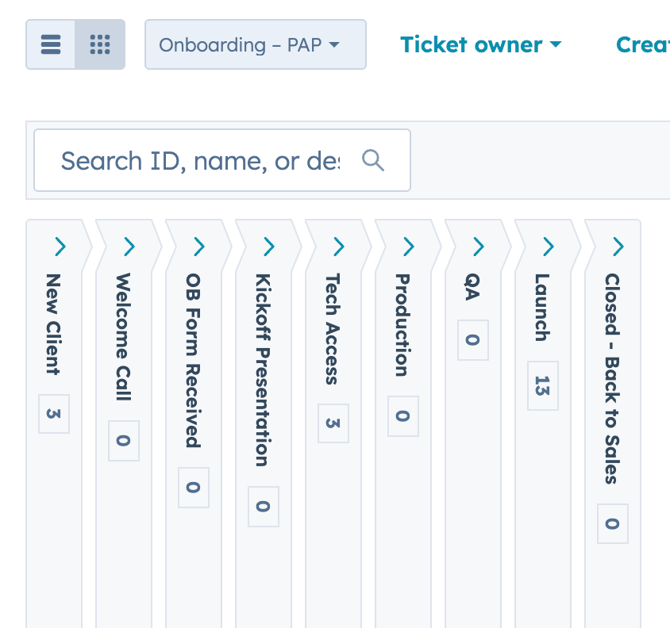
Stages
- New Client
- Welcome Call
- OB Form Received
- Kickoff Presentation
- Tech Access
- Production
- QA
- Launch
- Closed - Back to Sales
Stage 1: New Client
Actions
- Tasks:
- “Send Founder Email – [Ticket Name (Enrolled ticket)]”
Assigned to: William Donato - Task creation: “New Client Announcement – [Ticket Name (Enrolled ticket)]"
Assigned to: Valeria Aponte
- “Send Founder Email – [Ticket Name (Enrolled ticket)]”
*️⃣ Conditional: Is the Client doing Direct Mail?
- If YES: Ticket's property "Mailer Type" is updated to "New Movers"
- If NO: Workflow ends with no record update.
Stage: 2 Welcome Call
‼️ This status can't be skipped.
⚠️ Required field to move the ticket to this stage:
- Digital Marketing URL
- Call Tracking - Google Ads
- Call Tracking - Main Website
Actions
- Tasks
- Tech Access – [Ticket Name]
Assigned To: Roxy Betancourt - Task Creation: Create GTM (PAP) – [Ticket Name]
Assigned To: Leah Stephan - Task Creation: Create Dynamic Script (PAP) – [Ticket Name]
Assigned To: Leah Stephan
- Tech Access – [Ticket Name]
Stage 3: OB Form Received
No actions are triggered at this stage, the purpose of this stage is to indicate the status of the ticket.
Stage 4: Kickoff Presentation
No actions are triggered at this stage, the purpose of this stage is to indicate the status of the ticket.
Stage 5: Tech Access
‼️ This status can't be skipped.
⚠️ Required field to move the ticket to this stage:
- Digital Marketing URL
- Focused Google Ads Services
- Google Ad Budget
- Coming Soon LP Required?
- Is client doing direct mail?
No actions are triggered at this stage, the purpose of this stage is to indicate the status of the ticket.
Stage 6: Production
‼️ This status can't be skipped.
⚠️ Required field to move the ticket to this stage:
- Do we have domain access?
- Do we have GMB access?
- Do we have Google Ads access?
- Is the dashboard setup?
- Do we have Google Search Console access or setup?
Actions
- Tasks
- Create Dynamic Script (PAP) - [Ticket Name]
Assigned To: Leah Stephan
- Create Dynamic Script (PAP) - [Ticket Name]
*️⃣ Conditional: Is the Client doing Direct Mail?
- If YES: Ticket's property "Mailer Type" is updated to "New Movers"
- Ticket:
- [Ticket Name] - PAP (New Movers)
Pipeline: Direct Mail Onboarding
- [Ticket Name] - PAP (New Movers)
- Ticket:
- If NO: Workflow ends.
Stage 7: QA
No actions are triggered at this stage, the purpose of this stage is to indicate the status of the ticket.
Stage 8: Launch
No actions are triggered at this stage, the purpose of this stage is to indicate the status of the ticket.
Stage 9: Closed - Back to Sales
No actions are triggered at this stage, the purpose of this stage is to indicate the status of the ticket.
Onboarding - Startup Plan
Pipeline Overview
The Startup Plan onboarding pipeline in HubSpot is designed to guide new dental clients smoothly from “just signed” to fully launched campaigns. Each stage represents a clear milestone with a defined owner and handoff, ensuring nothing falls through the cracks. Below you’ll find a description of what happens at each stage, along with the required items needed to move the client forward to the next step.
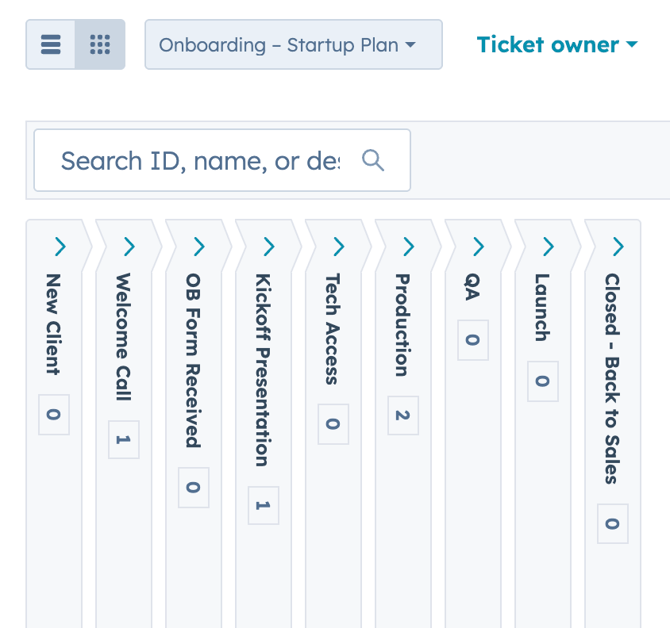
Stages
- New Client
- Welcome Call
- OB Form Received
- Kickoff Presentation
- Tech Access
- Production
- QA
- Launch
- Closed - Back to Sales
Stage 1: New Client
Actions
- Tasks:
- “Send Founder Email – [Ticket Name (Enrolled ticket)]”
Assigned to: William Donato - Task creation: “New Client Announcement – [Ticket Name (Enrolled ticket)]"
Assigned to: Valeria Aponte
- “Send Founder Email – [Ticket Name (Enrolled ticket)]”
*️⃣ Conditional: Is the Client doing Direct Mail?
- If YES: Ticket's property "Mailer Type" is updated to "Saturation"
- If NO: Workflow ends with no record update.
Stage: 2 Welcome Call
No actions are triggered at this stage, the purpose of this stage is to indicate the status of the ticket.
Stage 3: OB Form Received
No actions are triggered at this stage, the purpose of this stage is to indicate the status of the ticket.
Stage 4: Kickoff Presentation
No actions are triggered at this stage, the purpose of this stage is to indicate the status of the ticket.
Stage 5: Tech Access
⚠️ Required field to move the ticket to this stage:
- Digital Marketing URL
- Focused Google Ads Services
- Google Ad Budget
- Coming Soon LP Required?
- Is client doing direct mail?
Actions
- Tasks
- Tech Access – [Ticket Name]
Assigned To: Roxy Betancourt
- Tech Access – [Ticket Name]
Stage 6: Production
⚠️ Required field to move the ticket to this stage:
- Do we have domain access?
- Do we have GMB access?
- Do we have Google Ads access?
- Is the dashboard setup?
- Do we have Google Search Console access or setup?
- Branding Completed
- Coming Soon LP Required?
Not required fields:
- Coming Soon LP Project Notes
Actions
- Email
- Sends Email - Email - Google Ads - Ads Are in Development
- Tasks
- Create GTM (Startup) | [Ticket Name]
Assigned to: Leah Stephan
- Create GTM (Startup) | [Ticket Name]
- Ticket
- [Ticket Name] - Website
Pipeline "Internal - Creative Buildouts" - [Ticket Name] - Mockup
Pipeline "Internal - Creative Buildouts"
- [Ticket Name] - Website
*️⃣ Conditional: Coming Soon LP is required is "Yes" and Coming Soon LP Notes field was filled out
- Ticket
- [Ticket Name] - Coming Soon LP
Pipeline "Internal - Creative Buildouts"
- [Ticket Name] - Coming Soon LP
*️⃣ Conditional: Is the Client doing Direct Mail?
- If YES: Ticket's property "Is client doing Direct Mail" is "Yes"
- Ticket:
- [Ticket Name] - Start Up (Saturation Mailers)
Pipeline: Direct Mail Onboarding
- [Ticket Name] - Start Up (Saturation Mailers)
- Ticket:
- If NO: Workflow ends.
Stage 7: QA
No actions are triggered at this stage, the purpose of this stage is to indicate the status of the ticket.
Stage 8: Launch
No actions are triggered at this stage, the purpose of this stage is to indicate the status of the ticket.
Stage 9: Closed - Back to Sales
No actions are triggered at this stage, the purpose of this stage is to indicate the status of the ticket.
Onboarding - Associate Dentist Plan
Pipeline Overview
The Associate Dentist Plan onboarding pipeline in HubSpot is designed to guide new dental clients smoothly from “just signed” to fully launched campaigns. Each stage represents a clear milestone with a defined owner and handoff, ensuring nothing falls through the cracks. Below you’ll find a description of what happens at each stage, along with the required items needed to move the client forward to the next step.
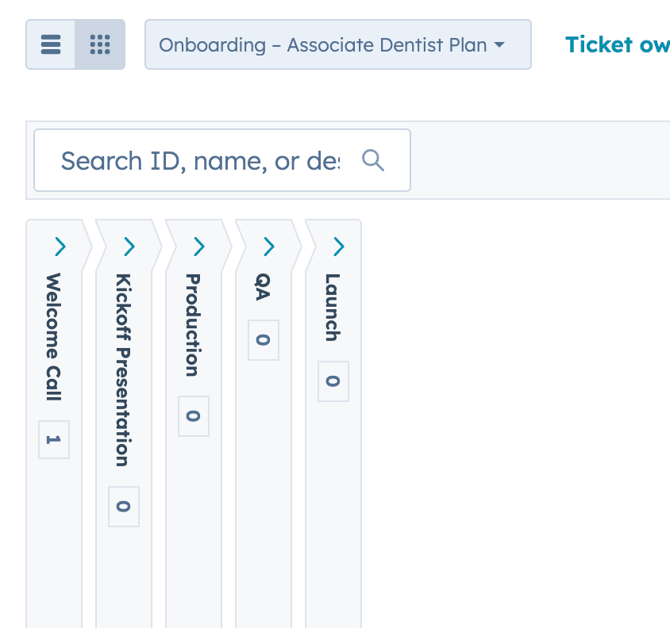
Stages
- Welcome Call
- Kickoff Presentation
- Production
- QA
- Launch
No actions are setup for this pipeline.
Onboarding - Direct Mail
Pipeline Overview
The Direct Mail onboarding pipeline in HubSpot is designed to guide new dental clients smoothly from “just signed” to fully launched campaigns. Each stage represents a clear milestone with a defined owner and handoff, ensuring nothing falls through the cracks. Below you’ll find a description of what happens at each stage, along with the required items needed to move the client forward to the next step.
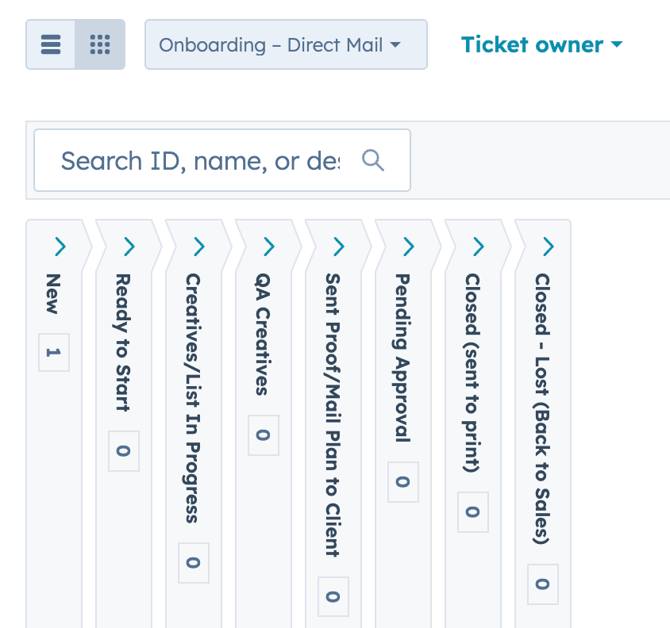
Stages
- New
- Ready to Start
- Creatives/List In Progress
- QA Creatives
- Sent Proof/Mail Plan to Client
- Pending Approval
- Closed (sent to print)
- Closed - Lost (Back to Sales)
State 1: New
No actions are triggered at this stage, the purpose of this stage is to indicate the status of the ticket.
State 2: Ready to Start
⚠️ Required field to move the ticket to this stage:
- Mailer Type
- Saturation
- New Movers
- Current Mail Month
- Current Mail Pieces
- Current Mail Piece Spend
No actions are triggered at this stage, the purpose of this stage is to indicate the status of the ticket.
State 3: Creatives/List In Progress
Actions
*️⃣ Conditional: New Movers/Saturation
- New Movers
- Email
- Sends Email - Email - Creative In Progress (New Movers)
- Email
- Saturation
- Email
- Sends Email - Email - Creative In Progress (Saturation)
- Email
State 4: QA Creatives
No actions are triggered at this stage, the purpose of this stage is to indicate the status of the ticket.
State 5: Sent Proof/Mail Plan to Client
No actions are triggered at this stage, the purpose of this stage is to indicate the status of the ticket.
State 6: Pending Approval
Actions
- ⏱️ 2 days delay
- Email
- Send Email - Email - Waiting on Proof (48 Hours)
- ⏱️ 2 days delay
- Email
- Send Email - Email - Waiting on Proof (96 Hours)
State 7: Closed (sent to print)
⚠️ Required field to move the ticket to this stage:
- Is client doing mail next month?
- Yes
- No
- Next month Mail Month
- Next month Mail Zone
- Next monthMail Pieces
- Next month Mail Piece Spend
- Mail Proof Link
- Delivery Week
Actions
- *️⃣ Conditional: New Movers/Saturation
- Doing Mail Next Month? Yes
- Ticket
- [Ticket Name]
Pipeline "Active - Direct Mail"
Status "Active (Recurring)"
- [Ticket Name]
- Ticket
- Doing Mail Next Month? Yes
-
- Doing Mail Next Month? Paused
- Ticket
- [Ticket Name]
Pipeline "Active - Direct Mail"
Status "Closed (Paused/Downgraded)"
- [Ticket Name]
- Ticket
- Doing Mail Next Month? Paused
-
- None Met = Cancelled
- [Ticket Name]
Pipeline "Active - Direct Mail"
Status "Closed (Lost)"
- [Ticket Name]
- None Met = Cancelled
State 8: Closed - Lost (Back to Sales)
No actions are triggered at this stage, the purpose of this stage is to indicate the status of the ticket.
Onboarding - Social Ads (Paid)
Pipeline Overview
The Social Ads (Paid) onboarding pipeline in HubSpot is designed to guide new dental clients smoothly from “just signed” to fully launched campaigns. Each stage represents a clear milestone with a defined owner and handoff, ensuring nothing falls through the cracks. Below you’ll find a description of what happens at each stage, along with the required items needed to move the client forward to the next step.
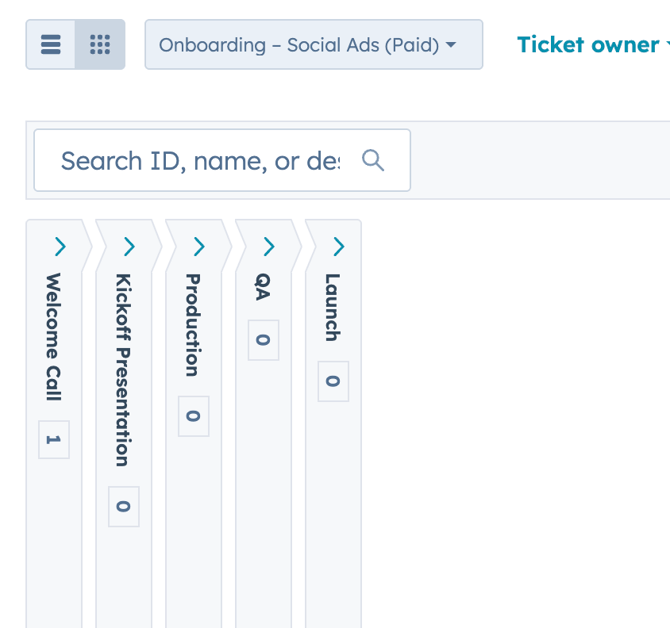
Stages
- Welcome Call
- Kickoff Presentation
- Production
- QA
- Launch
No actions are setup for this pipeline.
Onboarding - Perla / Call Analysis
Pipeline Overview
The Perla / Call Analysis onboarding pipeline in HubSpot is designed to guide new dental clients smoothly from “just signed” to fully launched campaigns. Each stage represents a clear milestone with a defined owner and handoff, ensuring nothing falls through the cracks. Below you’ll find a description of what happens at each stage, along with the required items needed to move the client forward to the next step.
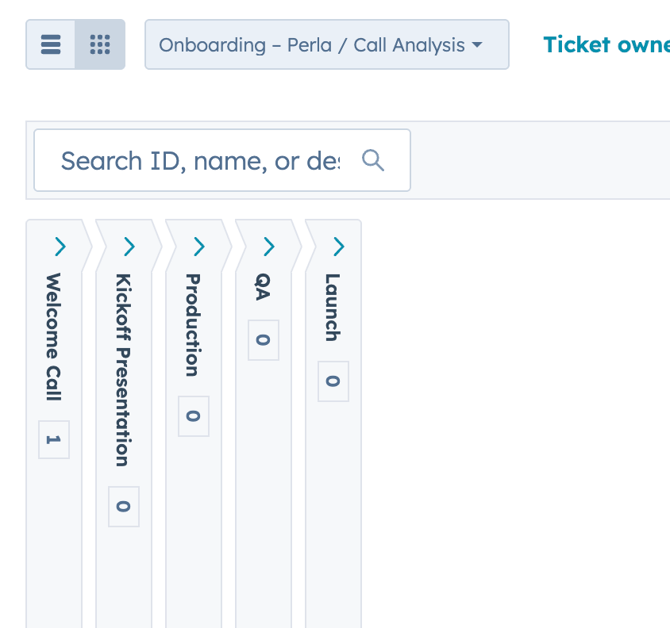
Stages
- Welcome Call
- Kickoff Presentation
- Production
- QA
- Launch
No actions are setup for this pipeline.
Onboarding - Website / Refresh
Pipeline Overview
The Website / Refresh onboarding pipeline in HubSpot is designed to guide new dental clients smoothly from “just signed” to fully launched websites. Each stage represents a clear milestone with a defined owner and handoff, ensuring nothing falls through the cracks. Below you’ll find a description of what happens at each stage, along with the required items needed to move the client forward to the next step.
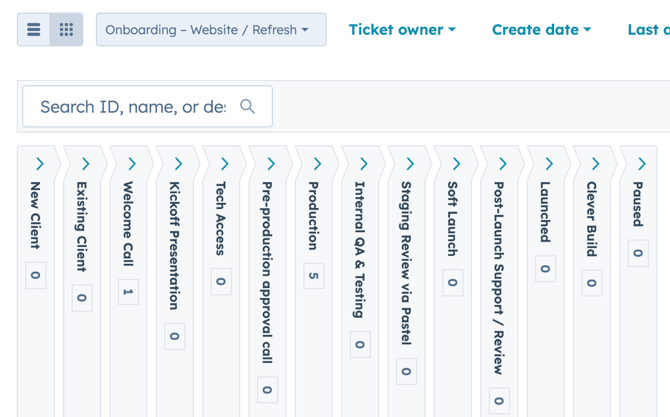
Stages
- New Client
- Existing Client
- Welcome Call
- Kickoff Presentation
- Tech Access
- Pre-production approval call
- Production
- Internal QA & Testing
- Staging Review via Pastel
- Soft Launch
- Post-Launch Support / Review
- Launched
- Clever Build
- Paused
Stage 1: New Client
Actions
- Tasks
- “Send Founder Email – [Ticket Name (Enrolled ticket)]”
Assigned to: William Donato - Task creation: “New Client Announcement – [Ticket Name (Enrolled ticket)]"
Assigned to: Valeria Aponte
- “Send Founder Email – [Ticket Name (Enrolled ticket)]”
Stage 2: Existing Client
No actions are triggered at this stage, the purpose of this stage is to indicate the status of the ticket.
Stage 3: Welcome Call
No actions are triggered at this stage, the purpose of this stage is to indicate the status of the ticket.
Stage 4: Kickoff Presentation
No actions are triggered at this stage, the purpose of this stage is to indicate the status of the ticket.
Stage 5: Tech Access
No actions are triggered at this stage, the purpose of this stage is to indicate the status of the ticket.
Stage 6: Pre-production approval call
‼️ This status can't be skipped.
⚠️ Required field to move the ticket to this stage:
- Did client provide brand style guide?
- Design Theme
Actions
- Ticket
- [Ticket Name] - Home Page Mockup
Pipeline "Internal - Creative Buildouts" - [Ticket Name] - Website Pre Production
Pipeline "Internal - Creative Buildouts"
- [Ticket Name] - Home Page Mockup
Stage 7: Production
- Ticket
- [Ticket Name] - Website Production
Pipeline "Internal - Creative Buildouts"
- [Ticket Name] - Website Production
Stage 8: Internal QA & Testing
No actions are triggered at this stage, the purpose of this stage is to indicate the status of the ticket.
Stage 9: Staging Review via Pastel
No actions are triggered at this stage, the purpose of this stage is to indicate the status of the ticket.
Stage 10: Soft Launch
No actions are triggered at this stage, the purpose of this stage is to indicate the status of the ticket.
Stage 11: Post-Launch Support / Review
No actions are triggered at this stage, the purpose of this stage is to indicate the status of the ticket.
Stage 12: Launched
No actions are triggered at this stage, the purpose of this stage is to indicate the status of the ticket.
Stage 13: Clever Build
No actions are triggered at this stage, the purpose of this stage is to indicate the status of the ticket.
Stage 14: Paused
No actions are triggered at this stage, the purpose of this stage is to indicate the status of the ticket.