![DentalMarketing-Logo2-White copy-1.png]](https://grow.dentalmarketing.com/hs-fs/hubfs/DentalMarketing-Logo2-White%20copy-1.png?height=40&name=DentalMarketing-Logo2-White%20copy-1.png)
The audit process varies for each client based on factors such as data availability, historical trends, and the account's strategic approach.
Generally, we like to analyze the account's performance over a 90-day timeframe, allowing us to detect any anomalies in performance trends and account for months with unusual dips.
There are 3 main categories of audits that we do:
- 1st Audits - Conducted one week after a new account launches on Google Ads. These audits use initial data to make optimizations, focusing on search terms, adjusting keyword bids, and addressing any flags that could impact performance (i.e. ad disapprovals, incorrect URLs, typos, etc.). The goal is to set the account on the right path and integrate it into our regular audit rotation.
- If there's no spend or impressions at the first audit, first check for an obvious reason:
- Budget already fully spent
- Bids too low
- Low search volume (may need radius expansion)
- If the budget is fully spent:
-
Ask the SA to if the client wants to increase budget to allow the campaigns to spend this month. If yes, they should post the budget increase request in #dm-marketing-status-update channel for us to update.
-
- If another issue is found:
-
Make adjustments and recheck in a few days. If spend or impressions begin coming in, then we’re good to go.
-
- If its' still not spending or driving impressions:
-
Flag the SA in #dm-trade-desk-and-ms and add to the Priority List. Have the SA collect CC info so we can create a new Google Ads account and transfer the campaigns over (likely an account issue)
-
- If there's no spend or impressions at the first audit, first check for an obvious reason:
- Routine Audits - Performed every 2–3 weeks, depending on bandwidth, to ensure consistent monitoring and account health. During these audits, we review performance trends and make standard optimizations based on the latest data. Unless an account is underperforming, routine audits focus on maintaining steady progress without major overhauls.
- Deep Dive Audits - Reserved for underperforming accounts or those with little to no volume. These are thorough, detailed evaluations aimed at identifying and resolving performance issues. They involve thoroughly reviewing search terms, verifying conversion tracking, analyzing website functionality, and implementing targeted optimizations. Often, these audits require significant strategy adjustments to realign the account with performance goals.
1. Consider Our Agency Goals
Ultimately, our aim is to implement necessary optimizations to improve or maintain account performance.
- Our standard benchmark is to achieve a 15% conversion rate or higher for all accounts.
- For accounts that surpass this benchmark, we focus on maintaining their strong performance. These accounts generally require fewer optimizations and should take less time to audit.
- For accounts that fall below the benchmark, we focus on improving their performance and pushing closer to the benchmark. These accounts generally require more optimizations and more time should be spent auditing them.
Note: For accounts with specialized focuses or unique campaign strategies, like Performance Max campaigns, attaining the 15% conversion rate may not be feasible. In such cases, our goal shifts to maximizing conversion rate, lowering cost per conversion, and increasing volume within realistic parameters.
- Tip: If you notice that 75% or more of the conversions are coming from Booking Widget Clicks, reach out to the SA to make the recommendation to switch this to a "secondary" conversion to prevent skewing metrics since many of these clicks don't result in actual booked appointments.
2. Analyze Data in the Dashboard
- Log into the dashboard portal and navigate to the client's dashboard
- Note: If you cannot find the client's dashboard, you may need to add yourself as a user to access it in the Admin portal of the dashboard, under 'Users'
-
Go to Calls > AI Analysis > New Patient Calls Answered and compare the last 30 days vs. the previous 30 days (this is the default view)
-
If there’s an increase, this indicates that things are trending positively.
-
If there’s a drop, it may suggest that further improvements are needed on the Google Ads side to help improve the quality of leads and calls.
-
- Optional: You can also review the following metrics for any unusually low values or significant declines compared to the previous month, as these could signal potential issues with our strategy, recent optimizations, or uncover other valuable insights:
- 'Total New Patients' under the 'Return on Ad Spend' section
- 'Total Appointment Value' under the 'Financial Analysis' section
- 'Immediate Return on Ad Spend' under the 'Return on Ad Spend' section
- Identify at least 3 calls with “Google” as the source and the “New Patient” tag. Review the call details (either by listening to the recording or reading the transcript) to determine whether the call was high quality or low quality (e.g., the caller was looking for a competitor). Note any competitor names mentioned so we can add them as negative keywords in the campaigns.
3. Review Pacing
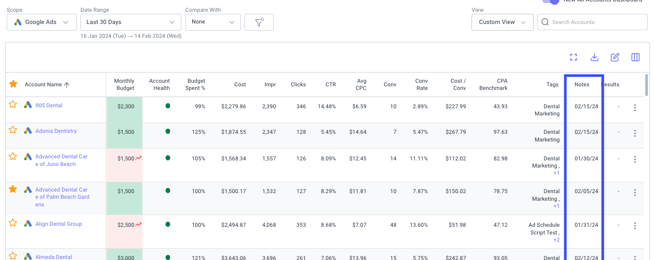
To ensure our accounts are utilizing their budgets effectively throughout the month, we can use Optmyzr to monitor the "Budget Spend %" metric. This will help you evaluate whether the account is on track with pacing.
- If an account is overpacing, make optimizations to reduce volume and spend. Some strategies include:
- Pausing keywords that are driving spend, but not conversions
- Reducing the location target radius or removing location targets that are driving spend, but not conversions
- Lowering bids on less effective keywords
- Pausing ad groups with spend, but low or no conversions
- If an account is underpacing, make optimizations to increase volume and spend. Some strategies include:
- Expanding location targets
- Opening up ad schedules
- Adding new keywords
- Increasing keyword bids
- Adding new service-specific ad groups
- Launching a Performance Max campaign
4. Exclude Competitor Terms
It is crucial to exclude competitor terms as soon as we notice them within the search terms to avoid wasting spend. We can do this manually or you can simply use the Dental Marketing Assistant to quickly and easily identify competitor terms to exclude them. To use the Dental Marketing Assistant, follow these steps:
-
Use the flex@donato.ai log in to access the Dental Marketing Assistant
-
Select the 'Check Search Terms for Negative Competitor Keyword' option
-
Follow the prompts to input the practice name and upload the search terms from the Google Ads account
- Note: It is generally the easiest to export the search terms at the account-level into a Google Sheet and then, copy and paste them into ChatGPT from there
- Review the provided competitor term list to ensure there are no conflicts with our targeted keywords and/or practice name
- Copy and paste the list as negative keywords at the campaign-level for all active campaigns within the Google Ads account
This should be completed during each routine audit for newly launched clients within the first 90 days, as competitor terms are especially common in search terms during this period.
5. Complete & Document Optimizations
- Review the Google Ads campaigns using a 90 day date range to ensure a sufficient range of data
- Make any necessary optimization you see fit to help improve account performance or better align with the client's goals
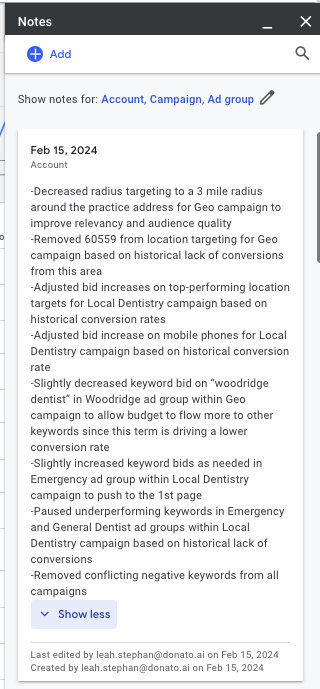
- Record all optimizations notes in the 'Notes' section in Google Ads and also add them to any corresponding tasks
- Update the date under the "Notes" column in Optmyzr (using MM/DD/YY format) to effectively track the last account touch or audit
This audit checklist outlines some general optimizations to consider during a Google Ads account audit.